Every app in this category says some version of "your data stays on your device". It is a good sentence. It is also unfalsifiable until you can point at the file.
So point at the file. It takes two minutes, it works for any app you use, and the answer changes what you can do, because a path you can find is a thing you can back up, copy to a new machine, and check the size of. A path you cannot find is a promise.
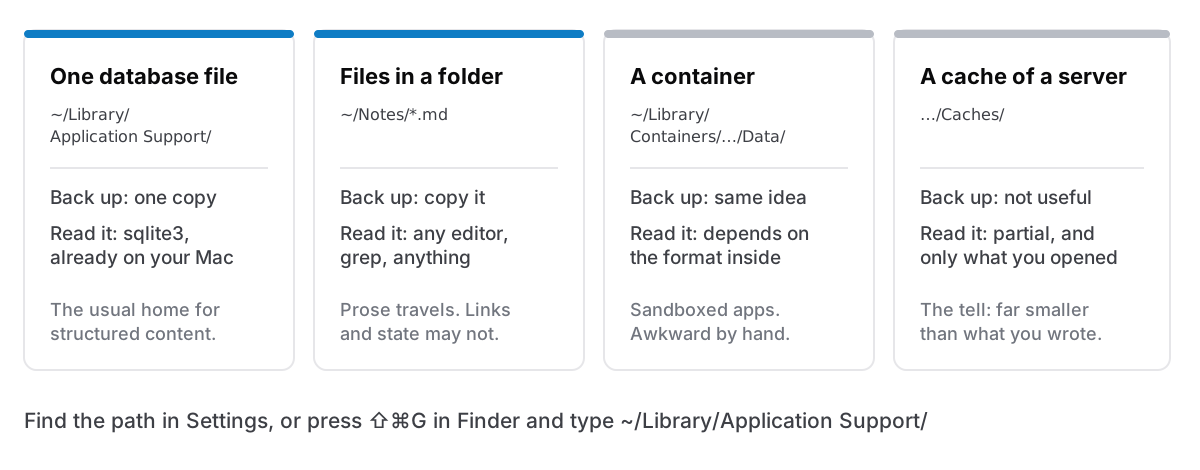
The three places a Mac app can put your data
Nearly everything lives in one of these.
Application Support. ~/Library/Application Support/<some identifier>/. This is the correct home for an app's own database, and it is where most well-behaved apps put it. The folder is hidden by default, which is why most people have never seen theirs.
A folder you chose. Some apps write plain files — Markdown, text, whatever — into a directory you pick. This is the most transparent arrangement there is: the notes are files, visible in Finder, greppable from a terminal, and the app is only ever a viewer.
A container. ~/Library/Containers/<bundle id>/Data/..., used by apps sandboxed for the App Store. Same idea as Application Support, one layer further in, and more awkward to reach by hand.
There is a fourth answer, which is "on a server, with a cache here". That is not a criticism — plenty of good software works that way — but it is a different arrangement, and the tell is that the local file is much smaller than the amount you have written.
How to find yours, in any app
Two routes. Try them in order.
Look in the app's settings. Well-made apps show you. Look for a data or storage section, often with a "reveal in Finder" button next to a path. If an app tells you where its database is without being asked, that is a good sign about the rest of it.
Otherwise, look yourself. In Finder, press ⇧⌘G and type ~/Library/Application Support/ — that shortcut is the whole trick, since the Library folder is hidden. Sort by date modified and the folder that changed while you were writing is the one. If it is not there, try ~/Library/Containers/.
Once you have it: open the folder and look at the sizes. A single file of a few megabytes named something like .sqlite or .db is the normal, healthy shape for an app that stores structured content. Thousands of small text files is the other normal shape. Almost nothing there is the shape that should make you ask what the app is actually a client for.
What to do with the path once you have it
This is why it was worth two minutes.
Point your backup at it. Time Machine already covers your home folder, so if it is running, this is done — but knowing the path is what lets you verify that, by browsing a Time Machine snapshot and finding the file. An untested backup is a hypothesis. I have written about the wider version of this, and it starts here.
Copy it before you do anything drastic. New Mac, major OS upgrade, app version you are unsure about: copy the folder somewhere first. It costs seconds and it is the difference between a bad afternoon and a lost year.
Check its size occasionally. A database that is 40 MB and stops growing while you keep writing is telling you something. A database that has doubled in a month is also telling you something, usually that you have been pasting images.
Know it for when the app is gone. If the developer disappears, the file is what you have. Whether that is a recovery or a dead end depends entirely on the format, which is the next question.
The format matters more than the path
A file you can find is not the same as a file you can read.
Plain files — Markdown or text in a folder — are the maximum-portability answer. Any editor opens them, grep searches them, and the app is genuinely optional. The cost is that things which are not text (links between notes, tick-box state, images, tables) have to be encoded in conventions each app invents, so a folder of Markdown is portable prose plus a proprietary sprinkling.
SQLite is one file containing structured data, and it is the most common answer for anything richer than prose. It is not a lock-in format: it is an open, documented, extremely long-lived format, readable by the sqlite3 command that ships with macOS and by free tools on every platform. Your notes are in there as rows, and you can get them out with a query even if the app that wrote them no longer exists.
A proprietary binary blob is the one to be wary of. If the file has an extension you have never seen and the app offers no export, then finding the path has told you where the data is and not much else.
The practical test is not "which format is purest". It is: can I get everything out, today, into something readable, without the app's cooperation being permanent? An app storing SQLite with a working full export passes. An app storing Markdown files passes trivially. Anything that fails both is a risk you are carrying whether or not you have noticed.
Two things people get wrong
Putting the database in a sync folder. It is tempting: move the app's data into iCloud Drive or Dropbox and you have invented sync. Sometimes this works. What it also does is let two machines write to one database file, and file-sync services resolve that by picking a winner or leaving you a conflicted copy, neither of which is what a database needs. If an app supports moving its storage, moving it to an external disk or a different folder is fine; moving it into a live sync folder used by two Macs at once is how corruption happens.
Assuming iCloud Drive is a backup. It is a sync service. Delete something and the deletion syncs, promptly and everywhere. A backup is a copy that does not change when the original does. That is the entire definition, and it is the reason a restore should replace rather than merge.
The honest version
Knowing the path does not make you safer by itself. What it does is convert a marketing claim into something you can check, and give you the one piece of information every recovery starts with.
If you use an app whose settings do not tell you where your writing is, go and find out today. Not because the app is untrustworthy — most are fine — but because the day you need to know is never a calm day.
Cyanote keeps everything in one SQLite file at ~/Library/Application Support/app.cyanote.desktop/, and Settings shows you that path and lets you move it wherever you want. Notes, tasks, calendar, habits, routines and the clipboard history are all in that one file, so backing it up is one copy. On top of that there is a readable JSON export of everything, and automatic daily backups keeping the last seven, because a path you can find is the floor, not the whole answer.