Keeping your notes on your own computer buys you a lot: they work offline, nobody else can read them, and no company can lose them, price you out, or shut down. It also hands you back a job the cloud was quietly doing on your behalf, and most people do not notice until the day it matters.
This is that job, and it is smaller than it sounds.
Is sync the same thing as a backup?
Worth getting out of the way first, because it is the single most common mistake in this area, and it catches people who thought they were being careful.
Sync propagates changes. That is its purpose and it is very good at it. Which means when you delete a note, sync faithfully deletes it everywhere, immediately. When a file is corrupted, sync distributes the corruption. When you paste over three paragraphs and quit, sync ensures all your devices agree on the wrong version.
A backup is different in one specific way: it can give you back a state from before the thing you regret. If a system has no notion of "yesterday", it is not a backup, whatever it is called.
Cloud note apps blur this because most of them do keep version history, which is a backup, of the note contents, on their servers, subject to their retention policy. Useful. Just not the same thing as sync, and worth knowing which one you are relying on.
Does Time Machine back up my notes?
On a Mac, Time Machine is most of the answer, and it is already built in.
It keeps hourly snapshots for the last 24 hours, daily for the past month, and weekly beyond that, until the disk fills and it starts dropping the oldest. That's a real answer to "get me the version from before Tuesday". Turn it on, point it at an external disk, and the majority of this problem is solved by a single setting.
Two limits are worth knowing.
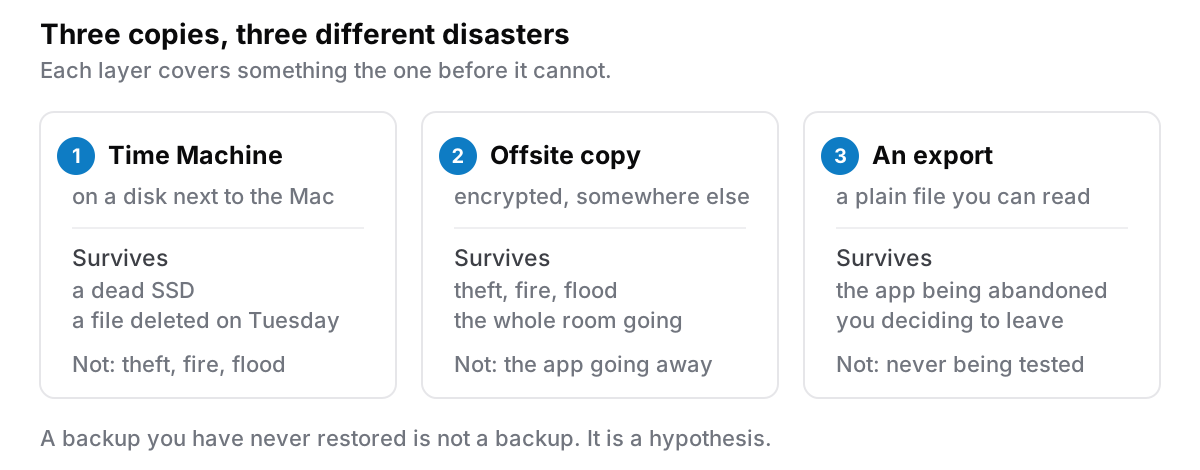
It is one disk in one building. A Time Machine drive sitting next to the Mac protects against a dead SSD and a bad afternoon. It does not protect against theft, fire or flood, because it is in the room. That is what the offsite copy below is for.
It is only as recent as the last time you plugged it in. A backup drive in a drawer contains a snapshot of whenever you last remembered. If your backup disk is not permanently attached, the honest question is not whether you have a backup but how old it is.
The rule worth actually following
The 3-2-1 rule has survived decades because it is simple: three copies of anything you care about, on two different kinds of storage, one of them somewhere else.
For notes on a Mac that translates to something quite ordinary:
- The working copy on your Mac.
- Time Machine on an external disk.
- Something offsite: a cloud backup service, an encrypted copy in whatever cloud storage you already pay for, or a second drive you keep at work or a relative's house and swap occasionally.
The third one is the one people skip, and it is the one that covers the scenarios where you lose the building rather than the file.
If the offsite copy goes to a cloud service and the whole point of keeping notes local was privacy, encrypt it before it leaves. Disk Utility can make an encrypted disk image; several backup tools will do it for you. An encrypted archive in someone else's cloud is a different proposition from your notes in someone else's app.
Export and backup are not the same thing
Any note app worth using can export. It is worth understanding what that gets you, because it is not the same as a snapshot.
A backup restores the app to a previous state — structure, links, attachments, the lot. It is what you want after a mistake.
An export produces files something else can read. It is what you want when you leave the app, or when the app is no longer available to restore into. It is the difference between recovering and escaping.
You want both, for different days. A backup is worthless if the software it restores into no longer exists; an export is a poor recovery tool because it usually loses structure.
So: whatever your app's export produces, run it once, now, and look at the output. Can another program open it? Are the attachments there, or just links to files that live inside the app? Do notes still reference each other, or has the structure been flattened into a folder of text? Ten minutes spent finding this out while everything is fine is worth a great deal more than finding out during a recovery.
Test the restore
A backup you have never restored is not a backup. It is a hypothesis.
The failure mode is boringly common: the drive was full, the job silently stopped months ago, the encryption password was never written down, the export was producing empty files the whole time. Every one of these is invisible until you need the thing, at which point it is also unfixable.
The test does not need to be elaborate:
- Restore a single note from a week ago into a scratch location. Open it. Confirm it is the note.
- Check the date of the most recent backup. If it surprises you, that is the finding.
- Confirm you can actually get in: the recovery key, the encryption password, the account. Store them somewhere that is not the machine being backed up. A recovery key saved only in the notes app you are trying to recover is a joke you only get to hear once.
Twice a year is plenty. I keep it on the calendar, because it is exactly the kind of task nothing will ever remind you to do.
The short version
Turn on Time Machine today; it is fifteen minutes and covers most of it. Add one offsite copy, encrypted if the contents are private. Run your app's export once so you know what it produces before you need it. And restore something, twice a year, so that you know.
Cyanote, the app this blog belongs to, exports to a single JSON file, and a restore replaces what is there rather than merging into it, after writing a rescue snapshot first. Worth knowing which of those two your own app does before the day you need it.
The point of keeping your notes on your own computer is that nobody else can lose them. The corollary is that nobody else can save them either.