"Password-protect a note" sounds like one feature. It is at least three, they defend against different threats, and having one of them does not give you the others. People generally discover this in the wrong order.
Here is what each layer actually does on a Mac, in the order they stop working.
The three layers, and what each one stops
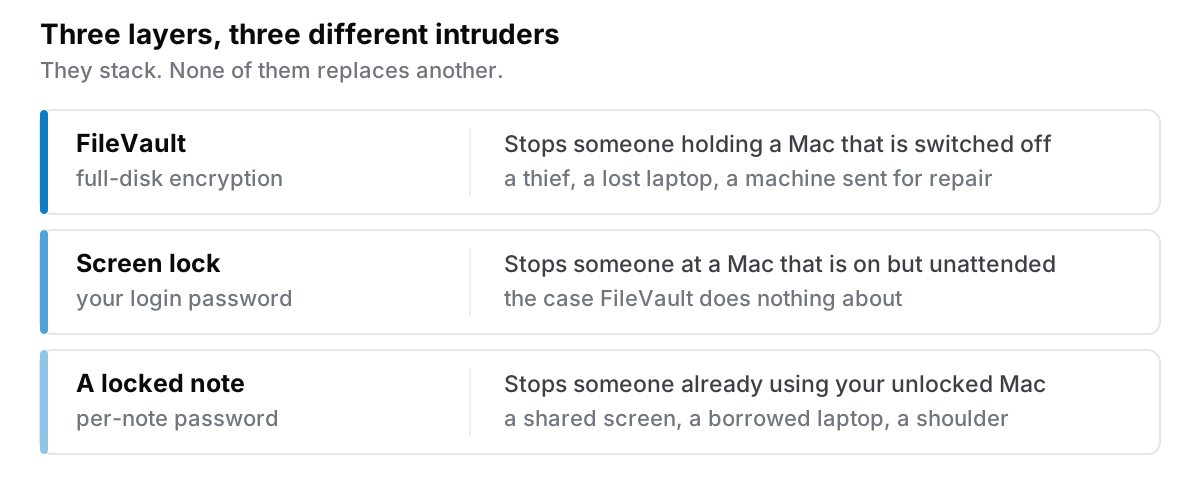
Your login password stops someone who walks up to your Mac while it is asleep. It does nothing at all once you are logged in. Every app you have is sitting there open, including whatever your notes are in. Useful, and the weakest of the three.
FileVault encrypts the whole disk. It stops someone who has your Mac in their hands and it is powered off: a thief, a lost laptop, a machine sent for repair. Without it, pulling the drive out and reading it on another computer is genuinely trivial. With it, the contents are unreadable without the key.
Its limit is the one people miss: FileVault protects a Mac that is off. Once you have logged in, the disk is decrypted and everything on it is readable by anything running as you. FileVault is not protecting your notes from your own running Mac.
A locked note is the only one of the three that still means something while you are sitting there logged in. It is per-note encryption, and the note stays unreadable until you supply the password, including from someone borrowing your unlocked laptop for five minutes, or looking over your shoulder while you have the app open.
You want all three. They are not alternatives.
How do you lock a note in Apple Notes?
Apple Notes has built-in locking, and for a lot of people it is enough.
Select a note, then File → Lock Note, or right-click the note in the list and choose Lock Note. macOS will ask you to set things up the first time. Recent versions let you use your Mac's login password rather than a separate Notes password, which is a meaningful improvement. A separate Notes password was the single biggest cause of permanently lost notes in that app.
Two things about it are worth knowing before you rely on it:
If you forget the password, the note is gone. This is not Apple being unhelpful; it is what encryption means. There is no reset that recovers the contents, and support cannot open it for you. If you set a Notes-specific password, put it in your password manager the same minute you create it.
Locking is per-note and you have to remember to do it. The sensitive thing usually gets written first and locked later, if at all. The note that needed protecting is often the quick one you typed in a hurry.
What "encrypted" should mean when an app claims it
Any note app can put a password prompt in front of a note. That is a UI, and on its own it protects against nothing. If the text is still sitting in plain form in the app's database, anybody who opens that file with the right tool reads it without ever seeing your prompt.
The question to ask is whether the note is encrypted at rest: unreadable in storage, decrypted only when you supply the key. The tell is the one described above. If the app can show you a preview of a locked note, or search inside it while locked, then it is not encrypted, it is hidden.
A quick, genuinely useful check for any app that claims per-note locking:
- Lock a note containing a distinctive phrase.
- Quit the app.
- Search the app's data folder for that phrase from the Terminal.
If the phrase turns up, the lock is decoration. If it does not, the encryption is real.
Where are your notes actually stored?
This part is worth knowing regardless of which app you use, because it determines who else can read them.
A note in a cloud-synced app exists in at least three places: your Mac, the provider's servers, and every other device signed in. Locking on your Mac does not necessarily mean the copy on the server is locked, and the provider's privacy policy — not your password — is what governs that copy. Apple encrypts locked Notes end-to-end, so the server copy is genuinely unreadable to Apple; not every provider does the same, and most are vague about it.
A note in a local-first app exists in one place: a database on your own disk. There is no server copy to reason about, which removes an entire category of question. The trade is that there is also no server copy to restore from, which makes backups your job rather than someone else's.
Neither is automatically safer. They fail differently, and the failure you should plan for is the one you can actually imagine happening to you.
The setup I would actually use
If you want a short version:
- Turn on FileVault. System Settings → Privacy & Security → FileVault. Store the recovery key somewhere that is not the Mac. This is the highest-value fifteen minutes of security work available on a Mac and most people have never opened that screen.
- Set the screen to lock quickly. A screen that locks after an hour is a screen that does not lock.
- Lock the handful of notes that genuinely warrant it — recovery codes, medical details, anything about other people who did not choose to be in your notes app.
- Put the password in your password manager, immediately, before you close the dialog.
- Back up. Encryption increases the number of ways you can lose things permanently. Time Machine, or an export somewhere else, is what makes that recoverable.
If you are choosing an app for this rather than staying with Apple Notes: Cyanote can lock any individual note behind a password, on top of FileVault rather than instead of it. The layers in the first section are not alternatives.
The point of locking a note is not that your notes are a secret. It is that a few of them are somebody else's secret, and those deserve better than being one open laptop away.