Every Mac comes with a sticky notes app. It's called Stickies, and it's in your Applications folder. Open it, choose File → New Note, and a yellow note appears on your screen. To keep that note in front of other apps, choose Window → Float on Top. Stickies saves as you type, so there's nothing else to do. It's free, it needs no account, and for a handful of reminders it's still a good tool.
It has limits, though. Stickies notes stay on the Mac they were written on, the only way to group them is by colour, and twenty of them means twenty windows. This post covers the parts of Stickies most people never find, how to get your notes out of it, and what to use when it stops fitting.
I make Cyanote, a notes app with a floating-note shortcut, so read the comparison at the end with that in mind. For most people reading this, the answer is one of Apple's two free apps, and I say which.
The short version
- Stickies is already on your Mac. Applications → Stickies, then File → New Note. Notes save automatically.
- To keep a note on top of other windows: select it and choose Window → Float on Top. You set this one note at a time.
- To back them up or move them: File → Export All to Notes… copies every sticky into Apple Notes. File → Export Text… saves one note as a file.
- Stickies doesn't sync. If you need the note on your iPhone, use Apple Notes, which can sit on your desktop as a widget.
- To jot something down from any app, Apple's Quick Note (
Fn+Q) or a hotkey app is quicker than switching to Stickies.
How to use Stickies on a Mac
Everything below comes from Apple's Stickies User Guide for macOS 26 Tahoe. I checked the menu names against Stickies 10.3 on a Mac running macOS 27, and they're the same.
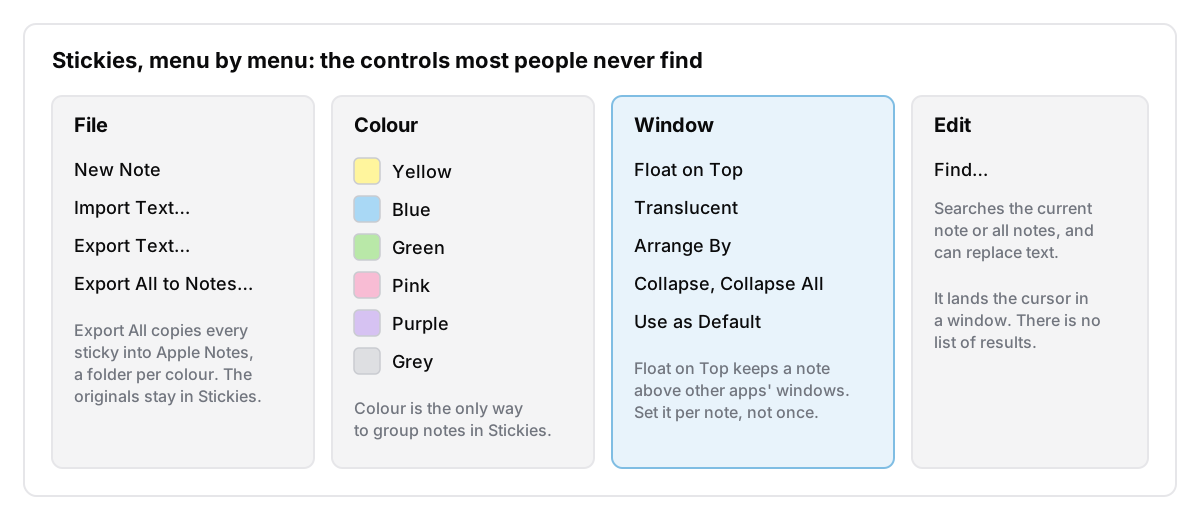
Open it. Stickies is in your Applications folder. You can also press ⌘ + Space and type "Stickies". When it opens, it shows every note you left there last time, in the same place on screen.
Make a note. Choose File → New Note and type. Apple's guide says "your content is saved automatically", and the first line becomes the note's title when you collapse it.
Keep a sticky note on top. With the note selected, choose Window → Float on Top. That note now stays above other apps' windows, so a phone number or a checklist stays visible while you work in a browser. Only that note floats. If you want three notes on top, you set it three times.
Make it see-through. Window → Translucent makes a note semi-transparent, so a floating note doesn't fully cover what's behind it.
Change the colour. Pick one from the Colour menu: yellow, blue, green, pink, purple or grey. Colour is the only way Stickies groups anything, so pick colours on purpose. You might use yellow for today, blue for reference and pink for anything with a deadline.
Collapse it. Double-click a note's title bar and it shrinks to a single line showing its first line of text. Double-click again to open it. Window → Collapse All folds every note at once, which is the quickest way to clear a crowded screen.
Tidy them up. Window → Arrange By lines the notes up by colour, content, date or position on screen.
Add more than text. You can change fonts with Font → Show Fonts, add a list, and drag a picture or PDF onto a note. If you style a note the way you like it, Window → Use as Default makes new notes start that way.
Find something. Edit → Find searches the current note or all of them, and can replace text. It moves your cursor to the match inside a window. There's no list of results, so with forty notes it's slow going.
What Stickies won't do
Stickies is built for a few notes you can see at a glance. Most of its limits follow from that.
- It doesn't sync. Apple's Stickies guide never mentions iCloud, and MacMost's July 2026 guide says plainly that Stickies notes don't sync and there's no iPhone or iPad version. A note written on your iMac stays on your iMac.
- It doesn't scale. Each note is a window. There's no sidebar and no list, so the only way to see what you have is to look at all of them. I wrote more about that in the post on why there's no Notepad on a Mac.
- It's rich text. Paste from a web page and the formatting comes along. Use Edit → Paste and Match Style to paste plain text.
- It doesn't start by itself. If you want your notes on screen as soon as you log in, add Stickies under System Settings → General → Login Items & Extensions, following Apple's login items guide.
- There are no reminders. A sticky note can't alert you at 3pm. For that you want a reminders or to-do app.
None of these are bugs. For four or five live things, like a code you're about to type, the next three steps of a task, or a number you need today, Stickies works well. Problems start when it becomes the place you keep things for months.
How to back up or move your Stickies notes
Use the export commands. Apple doesn't document where Stickies keeps its notes on disk, so copying files by hand isn't something I'd rely on.
To copy everything into Apple Notes, choose File → Export All to Notes…, then click Export All. Apple's guide says your notes are sorted into a folder for each colour, and the originals stay in Stickies. Once they're in Notes, they sync to your iPhone like any other note, as long as they landed in your iCloud account rather than On My Mac. The Notes sidebar shows which account is which. If they don't show up there, my post on Apple Notes not syncing covers the usual causes.
To save one note as a file, select it and choose File → Export Text…. You can save it as plain text, RTF or RTFD. RTFD is the one that keeps pictures. File → Import Text… does the reverse and turns a file into a new note.
If you're moving to a new Mac, Export All to Notes is the simplest route. If they went into your iCloud account, your stickies arrive on the new Mac as notes rather than stickies. If you'd rather they stayed stickies, export each one as RTFD and import them on the other side. That's tedious with more than a dozen notes.
Using Apple Notes as a sticky note
If you want a sticky note that's also on your iPhone, use Apple Notes. It can do three sticky-note jobs, and none of them needs anything installed.
A note on your desktop. Notes has a widget that can show a single note or a folder. Apple's widget guide for Notes says it lets you "access a note or folder quickly from Notification Center or your Mac desktop". To add one, Control-click the wallpaper and choose Edit Widgets, as Apple's widgets article explains. The widget shows the note. Click it and Notes opens, so you edit in Notes, not on the desktop.
A note that floats over other apps. Double-click a note in the list and, according to Apple's guide, "it opens in its own window". In that window, the Window menu has a Keep on Top option. MacMost describes it and notes that it resets when you close the window. Apple's guide doesn't mention it, but I confirmed the option is still in Notes on macOS 27.
A note from anywhere. Hold Fn (or the Globe key) and press Q, or move the pointer to the bottom-right corner of the screen. Apple's Quick Note page says the note "stays visible on the screen while it's open", and it's saved in the Quick Notes folder. I cover the settings and the limits in my Quick Note guide.
The trade-off is that everything you write in Notes becomes a permanent note, and it all ends up in the same list. For a scratch note you mean to throw away, that's more permanent than you need. I wrote about the case for a note you never tidy, and Notes isn't built for that.
Microsoft Sticky Notes on a Mac
If you use Sticky Notes on a Windows PC, you can't get a Mac app for it. Microsoft's page on viewing sticky notes on other devices lists Windows, OneNote on iPhone, iPad and Android, Outlook, and the web. It doesn't list a Mac app. On a Mac, the route is a browser: sign in to your Microsoft account at onenote.com/stickynotes and your notes are there. A Microsoft Q&A answer from December 2023 says the feature isn't in OneNote for Mac. That's an old answer, but Microsoft's current page still doesn't list the Mac, so the browser is the route I'd count on.
If you'd rather your notes didn't go through a Microsoft account at all, I wrote about notes apps on Windows that don't ask you to sign in.
Third-party sticky-note apps for Mac
Most third-party apps in this category are scratchpads behind a keyboard shortcut rather than desktop stickies. That solves the bigger problem: getting a thought down without leaving the app you're in. Here are four, with prices from their own pages, read on 21 October 2026.
| App | Price | What it's for |
|---|---|---|
| Antinote | $5, one-time | A scratchpad on a global hotkey, with checklists, a timer and sums. Can be pinned on top, even over full-screen apps |
| Tot | Free; Mac premium is a $19.99 in-app purchase | A few colour-coded pages of text that sync through iCloud to iPhone and iPad |
| SideNotes | $19.99, one-time per major version | Notes, tasks and links in a panel that slides out from the screen edge, with iCloud sync |
| Unclutter | $19.99 on the Mac App Store | A pull-down panel at the top of the screen with quick notes, clipboard history and a file drop |
If you want something you can call up from any app and that syncs to your phone, Tot is the obvious one to try first, because the free version already does the main job. If you want the cheapest hotkey scratchpad, Antinote at $5 is hard to beat. SideNotes and Unclutter suit you better if you want notes parked at the edge of the screen, out of the way until you need them.
A floating note in Cyanote
Cyanote's take on this is narrower than any of the above. Press ⇧⌥N (Shift + Option + N) in any app and a small window opens. Click the pin and the window stays above other apps; unpin it and it behaves like a normal window. Type, then press ⌘↩ to save. What you saved is a plain-text note, titled with its first line, on a page called Floating notes. It stays there until you move it under a project note or to the top level. Press Esc to hide the window without saving. The text stays, so it's there when you open the window again.
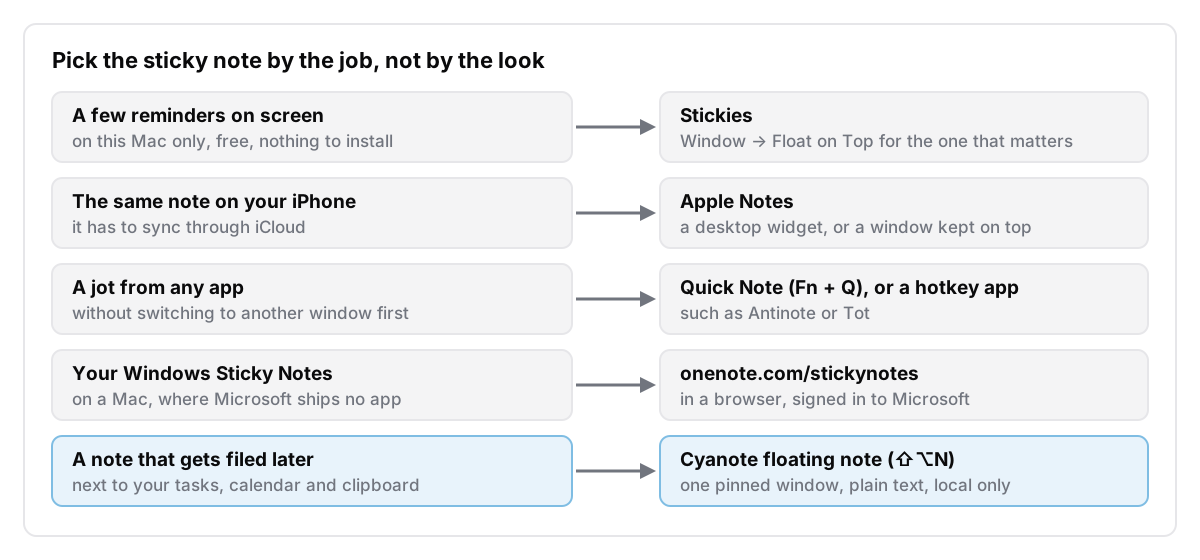
It has limits. It's one window, not a desktop full of coloured notes. There's no colour, no translucency and no sync, and Cyanote has no phone app. If what you want is a dozen notes on the screen at once, Stickies does that better, and it's free.
It suits someone whose sticky notes are really the start of tasks and notes. The floating note gets filed into the same app as your to-do list, calendar, habits and clipboard history. A filed note can be password-locked like any other note, and search covers it. All of it lives in one database on your own disk, with no account. Floating notes arrived in Cyanote 1.2.0 for Mac on 4 October 2026.
Cyanote for Mac is $7.99 once, with no subscription and no account. The Windows edition is a separate $7.99 purchase on the Microsoft Store.
Which one I'd use
For a few notes I need to see today, I'd use Stickies, with Float on Top on the one that matters and Collapse All when the screen gets busy. If I needed the note on my phone, I'd write it in Apple Notes and put a widget on the desktop. And once I noticed that my sticky notes had turned into a filing system, I'd stop using sticky notes for it and move them into a proper notes app, starting with File → Export All to Notes…. If you're weighing which app that should be, my round-up of free notes apps for Mac is a good place to start.