Apple's Quick Note is built into macOS. Hold the Fn (Globe) key and press Q, or move the pointer to the bottom-right corner of the screen and click the little note that appears, and a small note window opens over whatever you are doing. What you type is saved in the Quick Notes folder in Apple Notes. For a lot of people that is enough. This post covers how to start it, the settings worth changing, where it stops being the right tool, and what to use when it does.
I make Cyanote, which has its own version of this idea, so read the comparison parts with that in mind. Where Apple's tool is the better fit I say so.
The short version
- Start it with Fn + Q, or with the default hot corner, bottom-right, per Apple's Quick Note guide and Apple's hot corners page.
- Quick Notes are saved in the Quick Notes folder in Apple Notes, so they live wherever the rest of your Apple Notes live.
- You can't lock one. Apple's guide says so in as many words.
- By default it reopens your last Quick Note, which surprises people who expect a blank page each time. One setting turns that off.
- In Safari it can attach a link or a highlighted passage to the note, which is the part of Quick Note I would miss most if I left it.
- A floating note in another app is a different trade: a shortcut that opens a small window on top of anything, saves plain text, and does not decide for you which app's library it lands in.
How to start a Quick Note
There are three ways, all from Apple's Quick Note guide (checked 16 October 2026):
- The keyboard. Hold Fn or Globe and press Q.
- The hot corner. The bottom-right corner is the default. Move the pointer into the corner and a small note thumbnail appears; click it. You can change or remove the corner under System Settings > Desktop & Dock > Hot Corners, and Apple's hot corners page explains how to require a modifier key (Command, Shift, Option or Control) so that a stray cursor does not set it off.
- From Safari. Use the Share button and choose Add to Quick Note, or Control-click a selection and choose the same item. A link goes into the note, and the selected text is highlighted on the page the next time you visit it.
Apple's guide covers the feature back to macOS Monterey 12, so any Mac recent enough to run a supported macOS has it.
Two settings worth knowing
It resumes your previous note by default. If you press Fn + Q expecting an empty page, you instead land at the bottom of whatever you wrote last. Turn off "Always resume to last Quick Note" in Notes > Settings if you want a fresh note every time. Either behaviour is fine. The trouble is only when you assume one and get the other.
The hot corner is shared with everything else. Bottom-right is the Quick Note default, so if you already assigned that corner to Mission Control, Lock Screen or anything else, Quick Note will not be there. Check System Settings > Desktop & Dock > Hot Corners before blaming the feature.
Where the note goes, and why that matters
A Quick Note is an ordinary Apple Note that happens to be in the Quick Notes folder. That has good and bad consequences.
The good: nothing new to learn. If you already keep your notes in Apple Notes, a Quick Note is already searchable with the others, and you can move it into another folder from the Notes window whenever you like.
The less good:
- They pile up in one folder. Quick Notes do not file themselves. If you capture a few a day, the folder becomes a second inbox that you have to tidy.
- You can't lock them. Apple's guide says "You can't lock a Quick Note," so a note you jot down quickly about something private stays readable to anyone who opens Notes on your Mac. If that matters, see what Apple can and cannot read in Apple Notes and how to password-protect a note.
- They come with the account. Where they are stored and which devices see them depends on how your Notes are set up, which I cover in iCloud Notes, explained.
None of these is a flaw if Apple Notes is where you keep things. They matter if you wanted a scratch pad and did not want it joined to a library.
Other quick ways to start a note on a Mac
Quick Note is not the only built-in route.
Spotlight. On macOS Tahoe, Spotlight has a Create Note action: MacMost's walkthrough (published 23 September 2025) shows you giving the note a title and choosing a folder in Notes. It is slower than Fn + Q because of those two prompts, but it is the one that lets you choose the folder at the start.
A launcher. Raycast has notes of its own, but on its pricing page (read 16 October 2026) the free plan is limited to 5 notes, and unlimited notes need Pro at $10 a month or $96 a year. If you already pay for Raycast, that is fine. As a reason to start paying, it is a lot to ask for a scratch pad.
A notes app with a global shortcut. This is what Cyanote does, and it is the next section.
A floating note in Cyanote
I added this to Cyanote because I kept losing thoughts in the gap between "I should write that down" and "open the notes app, make a note, name it, and find my place again".
Press ⇧⌥N (Shift + Option + N) from any app and a small window opens on top of whatever you are doing. Type, then press ⌘↩ to save. Press Esc to hide the window without saving; the text you typed is kept, so it is there when you open the window again. The shortcut can be changed in Settings. On Windows it is Shift+Alt+N, saved with Ctrl+Enter.
What it saves is a plain-text note, titled with its first line. It does not go into a folder. It goes to a page called Floating notes, where it waits until you open it or file it. Filing is a "Move to…" dialog: the top level, or under any of your other notes.
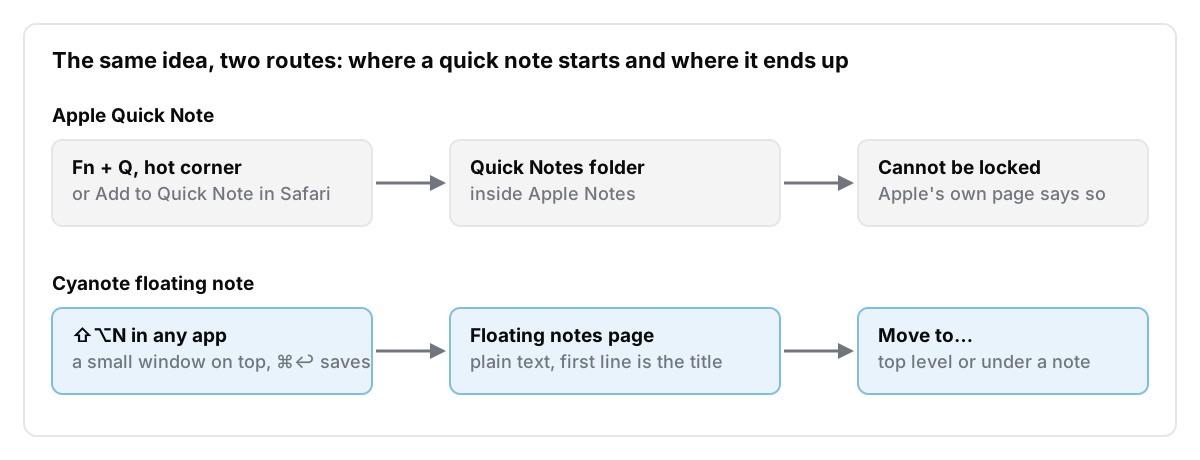
Floating notes shipped in Cyanote 1.2.0 on 4 October 2026. It is a deliberately small feature. It does not clip from Safari, and it will not attach a link to a page the way Apple's does.
Which one to use
A rough guide:
| You want | Best fit |
|---|---|
| Your notes already live in Apple Notes | Quick Note. It is built in and costs nothing |
| To save a link or a highlighted passage from Safari | Quick Note, which does this well |
| To choose the folder before you write | Spotlight's Create Note action |
| A scratch pad stored locally, with no account | A floating note in Cyanote |
| A capture shortcut you can choose yourself | A floating note, whose shortcut is set in Settings |
| Private jottings | Not Quick Note, because it can't be locked |
If you are choosing between Apple Notes and another notes app more generally, free notes apps for Mac and when it is worth moving off Apple Notes go through the decision. If the thing you are capturing is a thought you are not ready to write up, where ideas go before you are ready to write them is the more useful read than any shortcut list.
What Cyanote costs
Cyanote is $7.99 once on the Mac through Lemon Squeezy, with no subscription and no account. Windows is a separate $7.99 purchase on the Microsoft Store, and one doesn't unlock the other. The details are on the pricing page.
Common questions
How do I turn on Quick Note on a Mac?
There is nothing to turn on. Hold Fn and press Q, or move the pointer to the bottom-right corner. If the corner does nothing, someone changed the hot corner under System Settings > Desktop & Dock > Hot Corners.
Where are Quick Notes saved?
In the Quick Notes folder inside the Notes app, alongside the rest of your Apple Notes.
Can I lock a Quick Note?
No. Apple's Quick Note guide says a Quick Note can't be locked.
Why does Quick Note open my old note?
It resumes the last Quick Note by default. Turn off "Always resume to last Quick Note" in Notes > Settings to start fresh each time.