A clipboard manager records everything you copy. That is the feature. It is also, once a week or so, a password.
Copying a password out of a password manager is the normal way to use one. Copying a two-factor code is the normal way to use those too. Both go through the same system-wide buffer as the URL you sent a colleague, and a tool whose entire job is to remember that buffer will remember them, unless something stops it.
Something does: a convention, honoured voluntarily by both sides. It is worth understanding, because it is the difference between a clipboard history that is a convenience and one that is a plain-text password file with a nice interface.
The marker
When a password manager copies a secret, it can attach a marker to the clipboard item saying this is not for recording.
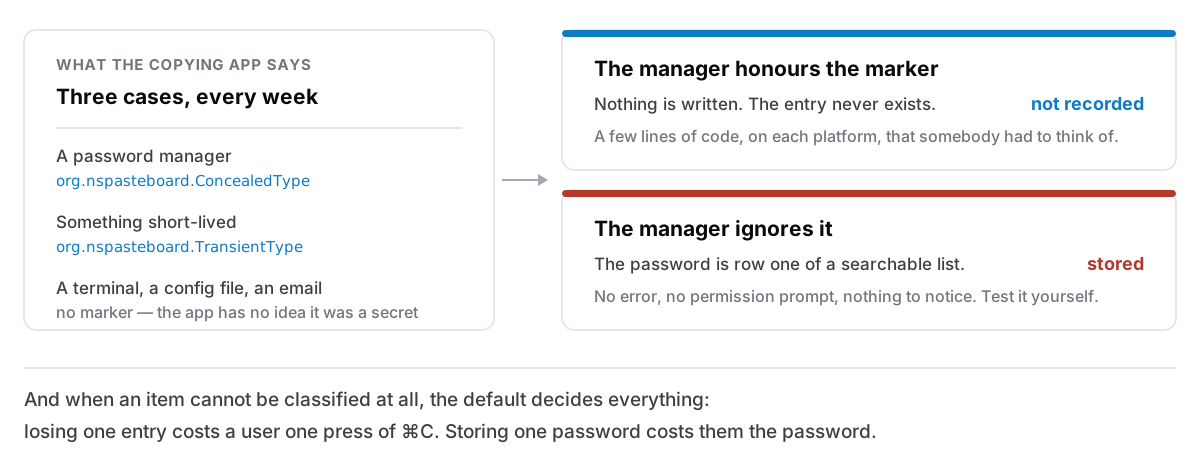
On macOS there are two, both part of a convention published at nspasteboard.com that Mac clipboard tools have followed for years:
org.nspasteboard.ConcealedType— this is a secret. Do not store it, do not show it in a list.org.nspasteboard.TransientType— this is temporary and about to be replaced. Do not bother recording it.
Windows has an equivalent pair of registered clipboard formats: ExcludeClipboardContentFromMonitorProcessing, whose mere presence is the signal, and CanIncludeInClipboardHistory, which carries a number where zero means keep it out.
Nothing in either operating system enforces any of this. There is no permission, no sandbox, no error if a tool ignores the marker. It is entirely a matter of the copying app setting it and the recording app respecting it.
Both halves have to work
This is the part people miss. Two apps have to behave for a secret to stay out of your history:
The source has to mark it. Most well-known password managers do. Not everything else does. A secret you copy out of a terminal, a config file, an email, an admin panel, a spreadsheet or a chat window carries no marker at all, because none of those apps knows it was a secret. Your clipboard manager will record it, correctly, because it has been told nothing.
The manager has to honour it. Reading those markers is a few lines of code and it is a few lines a developer has to have thought about. There is no compiler error for missing it. Cyanote's Windows build had exactly this gap for a while. It kept every password, not because anyone decided to, but because the check that existed on macOS had simply not been written for the other platform.
So the practical answer to "does my clipboard history contain passwords?" is: probably some of them.
Test yours in thirty seconds
Do not take anyone's word for this, including mine.
- Copy a password out of your password manager, the way you normally would.
- Open your clipboard history.
- Look at the top of the list.
If the password is sitting there, your combination of apps is not honouring the convention, and you now know something useful. Try it once more with something copied from a website's password field, and once with a two-factor code.
That test is worth more than any feature list, because it exercises the exact pair of apps you actually use.
What a manager should do when it cannot tell
There is a third case that decides how much you should trust a tool: what happens when it cannot classify an item at all. The clipboard is briefly locked by another app, a format cannot be read, something is malformed.
There are two possible defaults, and only one is defensible.
Cyanote's rule is that anything it cannot classify counts as private and is dropped. The reasoning is an asymmetry: losing one clipboard entry you could not classify costs the user one ⌘C. Storing one password you could not classify costs them the password.
That asymmetry is not close, and it is a reasonable thing to ask about any security-adjacent tool. What does it do when it does not know? A tool that defaults to recording when confused will, over months, collect precisely the items that were unusual, which is not a random sample.
One related subtlety: Windows also has a CanUploadToCloudClipboard marker. It means "do not sync this to my other machines", which is a statement about the cloud and not about whether a local history may hold it. An app that treats it as a do-not-record instruction is being generous with a signal that says something else; apps that mean both set the other two formats as well.
What else is in there
Passwords are the obvious case and not the largest one. In an ordinary working week, a clipboard history also accumulates:
- Two-factor codes, which are short-lived in reality and permanent in your history.
- Card numbers, one-time bank codes, your address, your date of birth.
- API keys and connection strings, which almost never carry a marker because they come out of a terminal or a config file.
- Private links — the "anyone with this link" kind, which are credentials wearing a URL's clothes.
- Whatever you copied off a colleague's screen during a call, which is now in your data rather than theirs.
None of that is an argument against clipboard history. It is an argument for knowing where the history lives and who else can read it.
The questions worth asking
Of any clipboard manager, including the one built into your operating system:
Where is the history stored, and is it on my machine only? A local file is a much smaller problem than a synced one. If clipboard history syncs to a service, everything above now applies to that service too.
Can I turn it off, and does turning it off clear what is already there? Off that leaves a fortnight of history on disk is not off. In Cyanote the clipboard can be switched off entirely in Settings, and doing so clears what it has already saved, because the alternative is a feature you disabled still holding your data.
Can I delete a single entry? You will need this five minutes after copying the wrong thing.
Does it honour the markers? Which you now know how to test.
A working habit
The convention covers the common case well and cannot cover the rest, so a small habit closes the gap: after copying something genuinely sensitive that did not come from a password manager — a key from a terminal, a code from an email — copy something harmless afterwards. It costs a second and it means the sensitive item is one entry deep in a list rather than sitting on the clipboard where the next app to ask can read it.
And if you use a password manager's autofill instead of copying, the clipboard never sees the password at all, which is the only completely reliable version of any of this.
For the wider picture of what a clipboard manager is for, what macOS keeps on its own and where it stops, and if you are weighing whether you need more than a free one, here is where the free ones stop.
If a secret has already landed in your history, here is how to clear the clipboard on a Mac, in every place it keeps a copy.