For years a Windows PC came with a Calendar app that you could open, click on a Tuesday and type "dentist, 3pm" into. That app is gone. Its replacement is the new Outlook, and the new Outlook is an email client that starts by asking which account to add.
So if what you want is a calendar on a PC that keeps your events on that PC and never asks you to sign in, the options have narrowed. Here is what is left, checked against Microsoft's and the other vendors' own pages, and where I would stop before buying anything.
What happened to Windows Mail and Calendar
Microsoft's support page is short about it: support for Windows Mail, Calendar and People ended on 31 December 2024. The same page says you can no longer send and receive emails or events with them, and that Windows 11 devices now ship with the new Outlook as the default mail app. Any local events you had in the old Calendar app remain exportable, and the page walks through moving them into the new Outlook.
Microsoft's overview of the change says the new Outlook is free, needs no subscription, and was also brought to Windows 10 in early 2025.
Does the new Outlook need an account?
This is the question most people searching for this want answered, so I went looking for a Microsoft page that says either "yes" or "no". I did not find one that says it plainly. What I found is that every page about the new Outlook describes it in terms of the accounts you put into it.
Start using new Outlook for Windows says most accounts are supported — Outlook.com and Hotmail, work or school accounts, Gmail, Yahoo, iCloud, and others over IMAP — and that your accounts may be added automatically when it first opens, or you add one by following the prompts. The page on adding an email account is the same shape.
There is a Microsoft page titled Use Outlook without an email account, and it is the one that tends to come up. Read the top of it: it applies to classic Outlook — Outlook for Microsoft 365, 2024 and 2021 — and the steps, which involve typing Outlook.exe /PIM into the Run box, say they only work for Outlook 2016 or Outlook with a Microsoft 365 subscription. It does not mention the new Outlook at all. It also notes that a profile without an email address keeps its calendar on that one computer — exactly what the person searching wanted, in the wrong Outlook.
So the fair summary is: the new Outlook is an account-based app, and I could not find a documented way to run it as a calendar with no account in it. If you already have an email account you are happy to add, that is not a problem. If the point was not to sign in to anything, it is not the tool.
The calendar in the taskbar clock
Click the date in the corner of the taskbar and a month grid appears. On Windows 11, Microsoft's troubleshooting page explains that the taskbar calendar is part of the Notifications and Action Center, which is why switching that off by policy stops it opening.
It is good for what it is: finding out what date next Thursday is without opening anything. It needs no account because it holds nothing. It is a view of the month, not a place to keep events, so it answers "what date" and not "what am I doing".
Google Calendar in a browser
If you already have a Google account, Google Calendar in a tab is a perfectly sensible answer: it is on your phone, it is shareable, and it costs nothing.
It is also an account, by definition. Google's own getting-started page begins with signing in to your Google Account. And "offline" is narrower than it sounds: Google's page on using Calendar offline says it works in Chrome, lets you see the last four weeks and anything in the future, and that while you are offline you cannot create or edit events.
Thunderbird: the free local option
This is the one I would point most people to first, because it is free and it does exactly what the search asks for.
Thunderbird is Mozilla's email client, and it has a calendar built in. Mozilla's help page on creating new calendars offers two kinds. Choose "On my computer" and the calendar is usable only on that computer, with everything stored in a database file in your Thunderbird profile. Choose "On the Network" and you can connect to CalDAV servers, Google calendars, or read-only ICS feeds such as holiday calendars.
So you can have a local calendar with no account on any server. What you get with it is an email client wrapped around it: Thunderbird is built for mail first, and its calendar is one tab among several. If you would use Thunderbird for mail anyway, this is very likely the answer and you should stop reading. If you only want the calendar, it is a large application to carry around for one tab — but it is free, so try it before paying for anything, including what I make.
When an account-based calendar is the right answer
Worth saying plainly, because "no account" is a preference, not a virtue.
If your calendar is shared — a family calendar, a team, anything where somebody else adds events you need to see — it has to live on a server, and an account is how you get to it. If you want the same calendar on your phone, same thing. If your work runs on meeting invitations, you need a client that can accept and send them, and that means the new Outlook, classic Outlook, or whatever your organisation already uses.
The case for keeping a calendar local is narrower and just as real: one PC, your own plans, and no wish to give an app your email or a copy of your week to get them. The Mac version of this post, seeing your calendar without signing into it, goes through the one mechanism that bridges the two — a read-only subscription address — in more depth than I will repeat here.
What I built
Cyanote is a desktop app that keeps notes, to-dos, clipboard history and a calendar in one window, on your own machine. It started on the Mac and now has a Windows edition, sold on the Microsoft Store. The notes side and the clipboard side have their own posts. This is the calendar, described from the code rather than from memory.
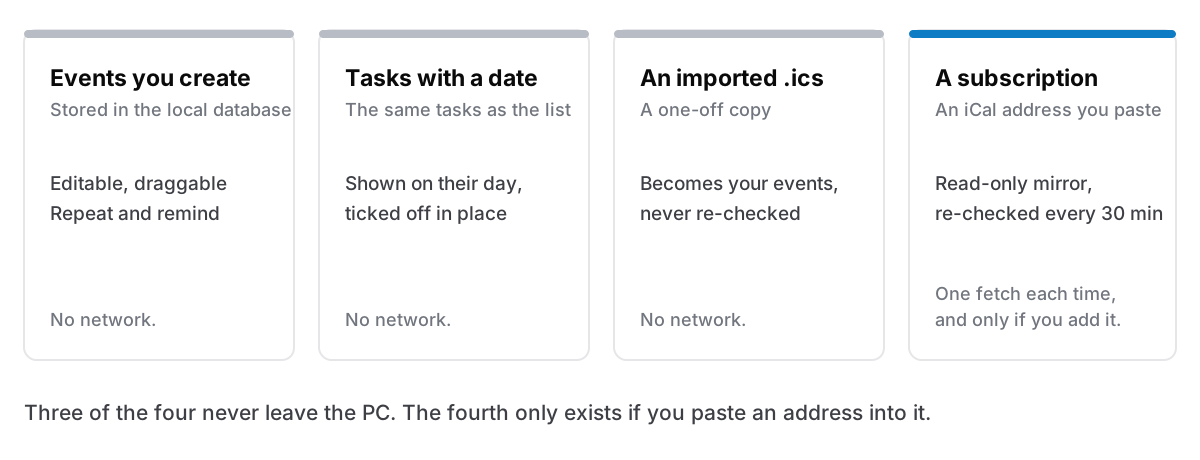
Events you create stay in one local file. The calendar is part of the same SQLite database as your notes and tasks, and there is no account, sign-in screen or server anywhere in it. An event has a title, a date and time, a place and notes. It can repeat daily, weekly or monthly, and it can remind you at the time, or 5, 10 or 30 minutes, an hour or a day before.
Four views. Day, week, month and an agenda list. Week is the default, because most of the time the question is today and tomorrow. In the day and week grids you can drag across the hours to make an event, and drag an event to move or resize it. A repeating event is edited as a whole series, so dragging one Tuesday is refused rather than quietly moving every Tuesday.
Tasks sit on their day. A to-do with a due date appears on that day, in a strip above the hours alongside all-day events, and you can tick it off there. Right-click a day and you can add an event, add a task due that day, or open that day's daily note. This is the whole reason the calendar is in the same app as the list; what belongs on a calendar and what belongs on a list goes into why the two should be different things that you can see side by side.
Importing a file is a copy. Settings has "Import from a file" for an .ics — the file most calendars export and most booking emails attach. The events become ordinary events of yours: editable, never re-checked, and no network involved. Importing the same file twice skips what is already there rather than doubling it.
Subscribing is opt-in, read-only, and the only request. If you want to see a calendar that lives elsewhere — Google's "Secret address in iCal format", a work calendar, a fixture list — you can paste its address. Cyanote then fetches that address over https when you add it, shortly after launch, when the PC comes back online, and every 30 minutes while it is open, plus a Refresh button if you are impatient. Nothing is written back: those events are a mirror, and the next refresh replaces them. The one thing you can set on a subscribed event is your own reminder, and that survives refreshes. A failed refresh leaves the calendar as it was rather than emptying it, and each subscription can be paused, renamed, recoloured or removed.
This is the only network request the Windows edition makes on its own, and it only happens for addresses you have pasted in. Two honest limits come with it. Google rebuilds these feeds on its own schedule, so a change made on your phone can take hours to arrive, and the app says so in Settings. And the fetch deliberately ignores the system proxy, so behind a corporate proxy that blocks direct connections a subscription will not work; import a downloaded .ics instead.
What it does not do. There is no sync, so an event made on this PC is on this PC. It cannot accept or send invitations, show someone else's free time, or put an event on your phone. There is no .ics export. And one thing I want to be precise about: the parts of the Windows edition I have tested by hand on a Windows laptop are clipboard history, paste-back, shortcuts, reminders, launch at login and opening .txt files. The calendar is the same code as the Mac one, and I have described it from that code; it was not on that list.
If you use it the way I do, planning a day you will actually follow is the routine, and on the Mac the same calendar is covered in notes, tasks and a calendar in one window.
Choosing
- You only need to know what date it is. The taskbar clock. Nothing to install.
- You share a calendar, want it on your phone, or live on invitations. Sign in. The new Outlook or Google Calendar is doing work an account-free app cannot.
- You want a free local calendar and use desktop email. Thunderbird, with a calendar "On my computer".
- You want your events, your tasks and your notes in one window on one PC, with nothing signed in. That is the gap Cyanote is for.
It costs $7.99, once, on the Microsoft Store, and runs on Windows 10 or later. It is a separate purchase from the Mac version, which is sold directly; one does not include the other. If you use both machines, one notes app on a Mac and a PC explains how that works without sync. The task side, with typed dates and reminders, is covered in a to-do list for Windows without an account.
If that last line in the list is you, Cyanote is on the Microsoft Store.