The usual shape of it: a Mac at home, which you chose, and a Windows PC at work, which somebody chose for you. Or the reverse — a Windows desktop you built, and a MacBook the job handed out. Either way you want the same notes app on both, and every search for "notes app for Mac and Windows" returns the same list of cloud services with an account attached.
Cyanote now runs on both. It does not sync, and this post is about what that means in practice: what is the same on the two machines, how notes get from one to the other when you want them to, and the case — more common than people admit — where the right number of note collections is two.
What "the same app on both" actually gives you
The Windows edition is the same application as the Mac one, built from the same code: the same editor, the same sidebar and note tree, the same tasks, habits, calendar and clipboard history. You learn it once. The muscle memory you build at home is the muscle memory you use at work, which is most of what people mean when they say they want one app on both machines.
A few things differ, and they are the things that should.
The modifier key. Shortcuts that use Cmd on the Mac use Ctrl on Windows. New note is Cmd+N at home and Ctrl+N at work; search all notes is Cmd+Shift+F and Ctrl+Shift+F; the command palette is Cmd+K and Ctrl+K; settings is Cmd+, and Ctrl+,. Under the hood a shortcut is stored as "the primary modifier", so it means the native one on whichever machine you are sitting at, and a shortcut you re-record on the Mac by pressing Cmd still matches Ctrl on the PC.
The clipboard hotkey. Clipboard history opens from anywhere with Option+Shift+V on the Mac and Alt+Shift+V on Windows — the same physical keys, named differently. Paste-back works the same way: pick an entry and it lands in whichever app you were in.
The operating system's own jobs. Reminders arrive as Windows notifications, launch at login goes through Windows, and a .txt file opens in Cyanote from Explorer the way it does from Finder. I have run the Store build on a real Windows laptop and checked each of those, along with clipboard history, paste-back and the keyboard shortcuts, rather than assuming the Mac behaviour carried over.
What does not differ is the part that matters most to me: the data lives on the machine. One SQLite database on the Mac's disk, one on the PC's. No account on either, no server between them.
What does not happen
The two copies do not know about each other. A note written on the Mac on Sunday is not on the PC on Monday unless you put it there. There is no background process quietly reconciling them, and there is no sync service waiting behind a setting.
If you need the same notes on both machines within the same day — writing on one, reading on the other an hour later, back and forth — you need software that syncs, and I have written about the ones worth considering without pretending Cyanote is one of them. Two Macs, one system makes the same argument for a pair of Macs, and the question it asks applies here unchanged: do you use both machines in the same week, or in different weeks?
For a Mac at home and a PC at work, the honest answer is usually neither. You use both every weekday, but for different things. That changes the problem again.
Two collections is often the right answer
Before working out how to move notes between the two, ask whether they should move at all.
Work notes on a work machine are frequently your employer's data. Meeting notes, a customer's details, the numbers from a spreadsheet you pasted in to tidy up — the fact that they are in your notes app does not make them yours, and copying them home is the kind of thing that sits badly in an acceptable-use policy. It is the same instinct as not pasting work data into random websites: the path out of the company's machine is the thing to be careful about, whatever is at the other end.
The reverse holds too. Your personal notes — the passwords-adjacent things, the health things, the list of flats you are looking at — have no business on a computer your employer administers, backs up and can inspect.
So the most common good setup is two Cyanote installations that never exchange anything. Work notes stay at work, home notes stay at home, and each machine has a complete, coherent collection for its own purpose. The rule that makes it work is the one from the two-Macs post: nothing lives in two places. Two half-collections, each missing the note you need, is the worst outcome; two whole ones with a clear line between them is not a compromise at all.
What you get from having the same app on both is not shared data. It is not having to be two different people with two different tools.
Moving notes across on purpose
Sometimes you do need to move something. A new job, a machine being replaced, a project that genuinely belongs on the other side. There are three ways to do it, from smallest to largest.
One note: export it as Markdown
Right-click a note in the sidebar and choose Export as Markdown…. You get an ordinary .md file — headings, lists, tick boxes, links and code blocks written out as Markdown — that any editor on either system can open. On the other machine, Settings → Backup → Import Markdown files turns each .md, .markdown or .txt file into a new note. Nothing already there is touched, and importing the same file twice does not create a duplicate.
This is the right tool for a handful of notes, and it is additive: it only ever adds. For a single short thing, emailing it to yourself is quicker still, and the phone version of that trick works just as well pointed at a PC.
Plain files, when a note is really a file
Cyanote opens .txt and code files directly, and a note opened that way stays linked to the file: Ctrl+S or Cmd+S writes it back. If the thing you want on both machines is really a text file — a running log, a config snippet, a list you edit rarely — keep it as a file, put it wherever you already move files between the two machines, and open it in Cyanote on whichever one you are at. The file is the source of truth, and it is a format that will outlive every app involved.
The same caution applies as always: do not do this with a file both machines have open at once, and do not put Cyanote's own database in a synced folder. A database is not a document, and file-sync services corrupt databases that two machines are writing to.
Everything: back up on one, restore on the other
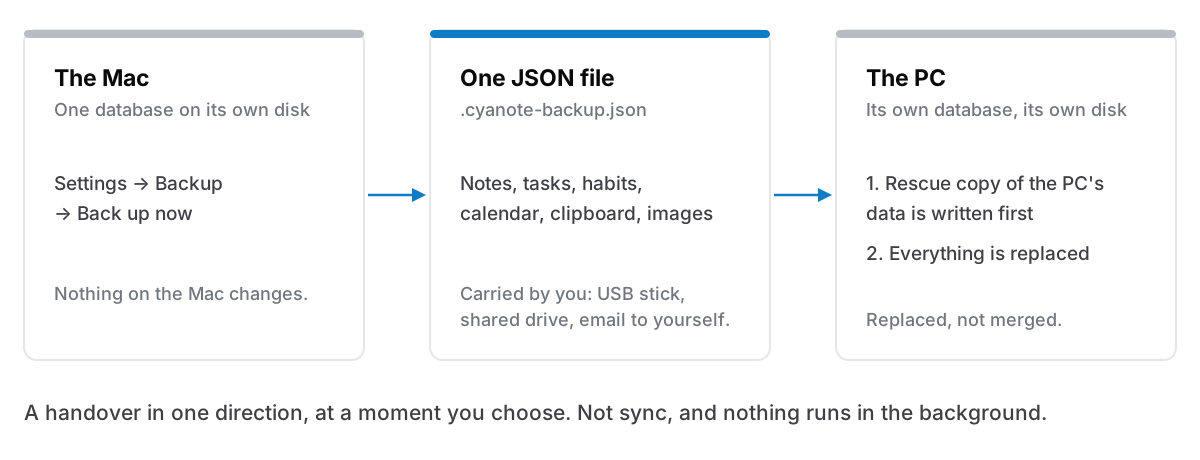
For a whole collection — the machine is being replaced, or you are moving your working life from one side to the other — use the backup.
On the Mac, Settings → Backup → Back up now writes one file named like Cyanote-backup-2026-09-26-0930.cyanote-backup.json. It is plain JSON with every table in the app: notes and folders, tags, links between notes, tasks, habits, routines, the calendar, clipboard history and pins. Images you have pasted into notes are stored inside the notes themselves, so they travel with them. Carry that file to the PC however you like, then on the PC choose Settings → Backup → Restore from backup… and pick it.
The Mac and Windows editions share the same backup code and the same format. The file has no notion of which operating system wrote it; restore checks that it is a Cyanote backup, that it is not from a newer version than the app reading it, and that every table's row count matches what was recorded at export, so a truncated file is refused rather than half-restored. The same works in the other direction, PC to Mac.
Read this part twice: restore replaces, it does not merge. Everything on the receiving machine — every note, task and clipboard entry — is swapped for the contents of the file. The app shows you what the backup contains and asks you to confirm with a button that says, in as many words, Replace my data with this backup. Before it touches anything, it writes a rescue backup of the receiving machine's current data next to the file you picked, and if it cannot write that rescue copy the restore is cancelled. The swap itself happens in a single transaction, so a crash halfway leaves your old data intact rather than half of each.
The rescue copy is there so a mistake is recoverable. It is not permission to be casual. The practical consequences:
- Restoring the Mac's backup onto a PC that already has work notes in it will replace those work notes. They are in the rescue file, but they are no longer in the app.
- There is no "add these to what I have". If you want some notes from each side in one place, move the smaller set across as Markdown instead.
- A note that was linked to a file on disk arrives unlinked. A file path from one machine means nothing on another — and following it blindly would be a security hole — so the note keeps every word and you re-link it with Save as… if you want to.
- Locked notes stay locked. They travel encrypted and open with the same password on the other machine, which means you need to remember it.
I have written more about what a backup is and is not, and about doing this between two Macs; the Mac-to-PC version is the same procedure with a different machine at the end. If what you actually want is to leave for another app entirely, getting your notes out covers that.
A routine that works
For someone who keeps two collections and occasionally moves something across:
- Decide which side each kind of note belongs to, and say it out loud once. Work on the work machine, everything else at home.
- Move single notes as Markdown, deliberately, in the direction the note belongs. Additive, nothing overwritten.
- Keep the whole-collection restore for whole-machine events: a new PC, a new Mac, a change of job. Not for Tuesdays.
- Keep a backup on each machine anyway. Cyanote writes an automatic backup once a day and keeps a week of them; a manual one copied somewhere else is still worth having. Two machines is exactly the situation in which you eventually restore onto the wrong one.
Two editions, two purchases
To be plain about the money: the Mac and Windows editions are separate purchases. The Mac edition is $7.99 once, sold directly on this site. The Windows edition is $7.99 once on the Microsoft Store, and needs Windows 10 or later. Buying one does not get you the other; if you want Cyanote on a Mac and a PC, that is two purchases. What the Windows edition does on its own terms, next to Notepad and OneNote, is in a notes app for Windows that never asks you to sign in.
The honest version
If you need the same notes on a Mac and a PC throughout the same day, buy something that syncs. That is not Cyanote.
If what you want is one app you know on both machines, with each machine's notes staying on that machine — and a deliberate, careful way to move things across when life changes — that is exactly what it is built for. The Windows edition is on the Microsoft Store; the Mac edition is on the pricing page.