You want a list of things to do on your Windows PC, and you want the PC to tell you when one of them is due. That is the whole requirement. What you do not want is to create an account, sign in, or have the list live on a server so that a reminder can reach a machine it never left.
It turns out to be a harder combination than it sounds, because the obvious answer on Windows is built the other way round. Here is what Microsoft offers, checked against its own support pages, then what I built.
Microsoft To Do: an account, by design
Microsoft To Do is the app Windows points you at, and it is good. It is also not something you can use without signing in. Microsoft's page on which accounts To Do works with lists personal Microsoft accounts (free) and certain work or school accounts, and nothing else. It also explains why. To Do needs an Exchange Online mailbox to store and sync your tasks, and personal Microsoft accounts are "powered by Exchange Online in the background".
So your tasks are not a file on your PC. They live on Microsoft's mail servers, next to your inbox. That is also why Outlook shows them. Microsoft says all tasks are stored on Exchange Online servers, so the same list turns up in To Do and in Outlook's Tasks, provided you sign in to both with the same account.
In fairness, what you get for the account is substantial. To Do runs on Android, iOS, Mac, Windows and the web and syncs between them. A task can have steps, repeat daily, on weekdays, weekly, monthly or on a custom pattern, carry a due date, and remind you at a time you pick. If you add a task on the train and want your phone to buzz about it, and your PC to show it when you get to your desk, To Do does exactly that and I would not talk you out of it. It is free. It is just not account-free, and nothing about it is local.
Outlook tasks: the same list, seen from Outlook
In the new Outlook for Windows, tasks come from To Do. Microsoft's own page on managing tasks in Outlook is titled "with To Do", and the My Day pane shows your tasks next to your mail and calendar. It is a convenient view if you live in Outlook, but it is not a separate option. The same account, the same Exchange Online storage, one more window on it.
Sticky Notes as a list
Plenty of people keep their to-do list on a sticky note, and on Windows that works without signing in. Microsoft says that on Windows 10 and 11 you don't need to be signed in to start using Sticky Notes. The account comes in only when you want the notes on your phone or in Outlook. More on that in the notes-app version of this question.
What a sticky note does not do is remind you. The feature that used to come closest was Insights: the same FAQ says that when a note contains a date, Sticky Notes can offer to create "a reminder in Cortana". Which brings us to Cortana.
Cortana: retired
Cortana used to be the easy answer to "remind me at five to call the garage". Microsoft says the standalone Cortana app in Windows was retired in the spring of 2023, and the rest of Cortana followed across Teams and Outlook mobile. If an old article tells you to ask Cortana, it is out of date.
The Clock app: alarms, not tasks
The one thing Windows has that will interrupt you at a given time without an account is the Clock app. Microsoft's page says alarms and timers work even if the app is closed or your device is locked, with an important condition. Notifications only show if the device is awake, so you have to stop it going to sleep.
An alarm is a time, though, not a task. It does not know what you were supposed to do, it is not on a list, and when you tick it off nothing is ticked off. For "take the bread out" it is perfect. For a week of things with due dates it is a stack of alarms you will eventually stop reading, a problem I have written about separately.
So the gap is quite specific
Sort through that and there is an obvious hole. Windows gives you a list with no reminders (Sticky Notes), reminders with no list (Clock), or a proper list with proper reminders that requires an account and keeps your tasks on Microsoft's servers (To Do and Outlook). There is no built-in to-do list with due dates and reminders that sits on your own disk and asks for nothing.
What Cyanote does instead
Cyanote is a desktop app that keeps notes, to-dos, a calendar and clipboard history in one window, on your machine. It started on the Mac and now has a Windows edition on the Microsoft Store. There is no account in it anywhere. No sign-up, no email address, no password. The tasks, like everything else, sit in one database file on your PC. Here is what the task side does, and I have read the code for each of these rather than going from memory.
You type a task the way you would say it. "Pay rent tomorrow 9am !high" becomes a task called "Pay rent", due tomorrow, with a reminder at 9:00 and high priority. The parser understands today, tomorrow, weekdays ("fri", "next friday"), "next week", and dates like "12 aug" or "aug 12". Times can be "9am", "9:30 pm" or "at 17:00", and priority can be !high, !med and !low, or p1 to p3 if you are used to issue trackers. What it took from your sentence shows up as chips under the input, and one click on a chip puts those words back in the title. It is deliberately cautious: "12/8" is not treated as a date, because half the world reads it the other way, and a bare number counts as a time only after "at". A task typed with no date lands on today. The reasoning behind all of this is in typing a task the way you say it.
The list sorts itself by when. Tasks group under Overdue, Today, Tomorrow, Later and No date. Anything overdue carries onto today rather than disappearing into the past, and a task due yesterday counts as overdue from midnight, not 24 hours later.
There is a board. The same tasks can be viewed as a Kanban board with columns by priority, from none to high. Dragging a card rightwards raises its priority. How I would set up a board for one person is in personal Kanban.
Tasks show on the calendar. A task with a due date appears on that day in the calendar's month view, week view and agenda, next to your events. If you are unsure which of the two something belongs in, calendar or list is my test.
Reminders are Windows notifications. Set one from the bell on a task, with quick picks for 30 minutes, an hour, this evening and tomorrow at 9:00, or any date and time you choose. When it is due, it arrives as an ordinary Windows notification. This is one of the parts I have tested on a real Windows laptop, not just compiled. Launch at sign-in, clipboard history, paste-back, global shortcuts and opening .txt files are the others.
What "the app must be running" means here
This is the honest bit, because it is where local reminders differ from To Do. No server is watching the clock for you. Cyanote is. So the question is what happens in each state, and the answer is in the code.
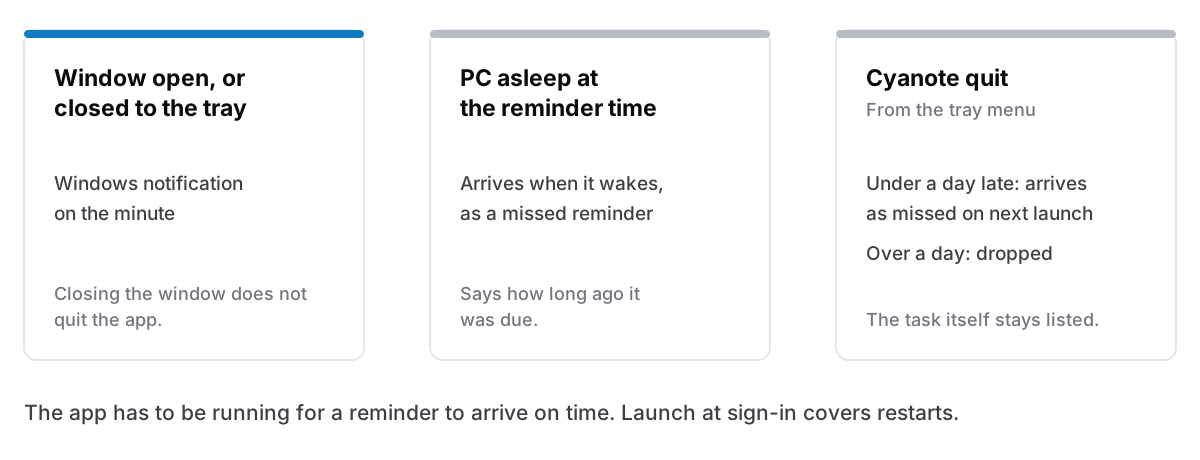
- Window closed. Closing the window does not quit Cyanote. It hides to the notification area (the tray), and reminders keep arriving. The check runs on a native timer aligned to the clock, so a reminder for 09:15 is checked at 09:15:00, not at some point in the next half-minute.
- PC asleep. Nothing arrives while the PC is asleep, which is true of the Clock app too. When it wakes, the reminder arrives, labelled as missed and saying how long ago it was due.
- Cyanote quit. If you choose Quit from the tray menu, nothing is checking. When you next open the app, a reminder less than a day late arrives as missed. One more than a day late is dropped rather than announced, because a week of stale alerts after a holiday helps nobody. The task stays on your list either way. Only the alert expires.
- After a restart. Turn on launch at sign-in in Settings (it is off until you do) and Cyanote starts with Windows, so a reboot does not quietly switch your reminders off. If you disable it later in Windows' own Startup settings, Windows does not let the app switch it back on, and Settings says so.
One Windows setting to know about: Cyanote's reminders are ordinary app notifications. With Do Not Disturb on, Microsoft says other notifications are sent directly to the notification center instead of showing a banner, unless you add the app to the list allowed through. If you rely on Do Not Disturb, add Cyanote to that list in Settings, System, Notifications.
What it does not do
Just as plainly. Cyanote has no repeating tasks and no subtasks. A task is a title, a due date, a priority and an optional reminder. Repeating things live elsewhere in the app: calendar events can repeat, and habits and routines can have a daily reminder time. But "water the plants every Sunday" is not a repeating task in the list, and To Do does that better.
There is no sync, no phone app and no web version. A task added on this PC is on this PC, and so is its reminder. If you need your phone to buzz, To Do is the right tool and you should use it. If you are weighing up a subscription task manager instead, leaving Todoist goes through what the subscription actually buys.
What it costs
$7.99, once, on the Microsoft Store. No subscription. It needs Windows 10 or later. It is a separate purchase from the Mac version, which is sold directly, and buying one does not include the other. If you use both machines, one notes app on a Mac and a PC covers how that works without sync. Dated tasks also show up in the calendar, which has its own write-up.
The same window also has notes and a clipboard history that survives a restart. Clipboard history on Windows is about that half, if the built-in Win+V has let you down.
Choosing
If your tasks need to follow you onto a phone, use Microsoft To Do and accept the account. It is free and it is good at that. If one thing needs to go off at one time, the Clock app will do it without asking anything of you.
If you work at one PC, you want a list with due dates and reminders that arrive as Windows notifications, and you would rather not sign in to anything to have one, Cyanote is on the Microsoft Store for $7.99, once.