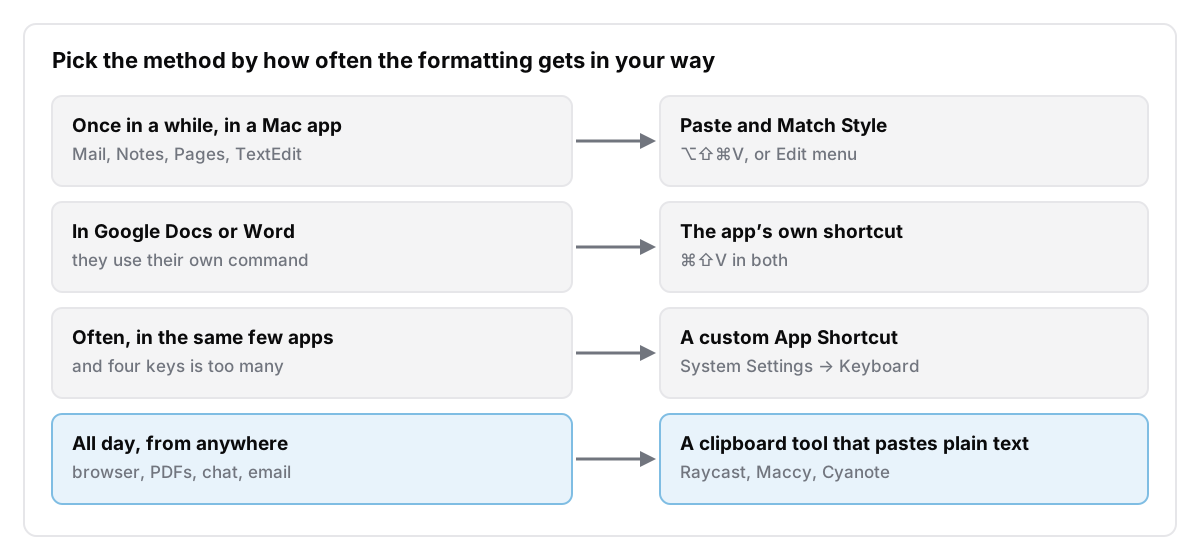
To paste without formatting on a Mac, press ⌥ + ⇧ + ⌘ + V. That's Paste and Match Style, also in the Edit menu of most Mac apps. It keeps the words you copied and drops their font, size and colour, so the text takes on the style of whatever is around the cursor. A few apps use a different shortcut. Google Docs and Microsoft Word both use ⌘ + ⇧ + V.
If you'd rather never think about it, you can give the command an easier key or use a clipboard tool that pastes plain text by default.
I make Cyanote, a notes app with a clipboard manager built in, so one of the tools later in this post is mine. I'll say where it fits and where another tool is the better pick.
The short version
- Most Mac apps:
⌥+⇧+⌘+V, or Edit → Paste and Match Style. Works in Mail, Notes, Pages, TextEdit and many others. - Google Docs:
⌘+⇧+Vfor paste without formatting, and⌘+\to clear formatting you've already pasted. - Microsoft Word for Mac:
⌘+⇧+Vpastes text only.⌘+Control+Vopens Paste Special. - A text that's already a mess: in TextEdit, Format → Make Plain Text strips every style from the document.
- To make it permanent: assign your own shortcut in System Settings → Keyboard → Keyboard Shortcuts → App Shortcuts, or use a clipboard manager that pastes plain text. Maccy, Raycast and Cyanote all can.
Why the formatting comes along at all
When you copy, the app you copy from doesn't put one thing on the clipboard. It puts several versions of the same thing there at once. Apple's Pasteboard Programming Guide puts it plainly: a pasteboard "can hold multiple representations of the same pasteboard item." A sentence copied from a web page is usually there as HTML, as rich text and as plain text, all at the same moment. (This is also what a clipboard history tool sees when it saves a copy.)
The app you paste into chooses which version to take. The same guide says an app should pick the type that best suits it, and that "typically, this means selecting the richest type available." So Mail, Pages or Notes takes the formatted version, and the web page's font and colour arrive in your email.
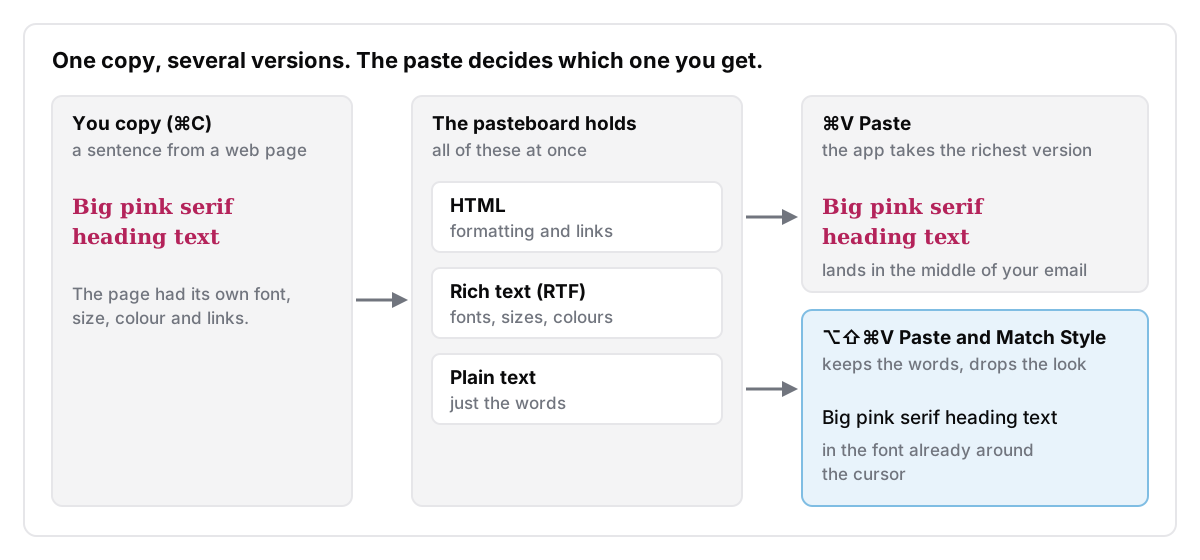
That's also why there's no single "strip formatting" setting for the whole Mac. The formatting arrives because the app you paste into reaches for it. Each fix below works on one of the two sides: it changes what the receiving app takes, or it changes what's on the clipboard.
Method 1: Paste and Match Style (⌥⇧⌘V)
This is the one to learn first. Apple's Mac keyboard shortcuts list ⌥ + ⇧ + ⌘ + V as Paste and Match Style: it applies the style of the surrounding content to the item you paste. Apple's guide on how to copy and paste on Mac says the same, and adds that the pasted text takes on the font, colour and size of what's around it.
Two things to know about it:
- It's "match style", not "plain text". You don't get unstyled text. You get the words in whatever style is at the cursor. In an email you're writing in Helvetica, the paste comes out in Helvetica. Most of the time that's what you want. If the cursor sits inside a bold heading, the paste will be bold too.
- It only works where the app provides it. Apple's own apps and most native Mac apps have it in their Edit menu. Web apps such as Google Docs, and office suites such as Word, often use their own command instead. If the shortcut does nothing, open the Edit menu and look for the app's own name for the command.
Pages documents both commands. Apple's Pages guide to copying and pasting text says Edit → Paste keeps the copied formatting and Edit → Paste and Match Style makes the text match where you paste it.
Method 2: the apps that use a different shortcut
The apps where people paste most, documents and chat, are also the ones most likely to use their own shortcut. Here's what each one's own help page says, read on 30 October 2026.
| App | Paste without formatting | Fix it after pasting | Source |
|---|---|---|---|
| Most Apple apps, such as Mail, Notes, Pages and TextEdit | ⌥ + ⇧ + ⌘ + V | — | Apple |
| Google Docs | ⌘ + ⇧ + V | ⌘ + \ clears formatting | Google Docs Editors Help |
| Microsoft Word for Mac | ⌘ + ⇧ + V (paste text only), or ⌘ + Control + V for Paste Special | — | Microsoft Support |
| Slack | No dedicated shortcut listed | Turn on Format messages with markup | Slack Help |
In Word, the "text only" paste does more than drop the font. Microsoft's page on controlling formatting when you paste says Keep Text Only also drops pictures and turns tables into paragraphs. That's fine for a paragraph from a website. It's a problem if you meant to bring a table across.
In Slack, the help page says that if you switch on Format messages with markup (your profile picture → Preferences → Advanced → Input options), the toolbar is hidden and formatted text you paste comes in as plain text. You then format by typing markup, such as asterisks around a word to make it bold.
Method 3: give Paste and Match Style a key you'll actually use
Four keys at once is a stretch, and plenty of people never get it into muscle memory. macOS lets you assign your own shortcut to any menu command. Apple's guide to creating keyboard shortcuts for apps gives the steps:
- Open System Settings → Keyboard, then click Keyboard Shortcuts.
- Choose App Shortcuts and click the Add button.
- Pick an app from the menu, or All Applications.
- In Menu title, type the command exactly as it appears in the app's menu:
Paste and Match Style. - Click the shortcut field, press the keys you want, and click Done.
Apple's page stresses that the title has to match the menu "exactly as the command appears in the app." A shortcut for Paste and match style with a lowercase m won't take. And it can only point at a menu command that exists. In an app with no such command, the new shortcut does nothing.
Some people set it to plain ⌘ + V, so every paste in that app matches style. That works, but you lose the ordinary formatted paste on that key in that app. If you go this way, do it per app, for the two or three where you always want plain paste, rather than for All Applications.
For Word, the same idea uses Word's own settings. A Microsoft community moderator described the steps on Microsoft Q&A in 2021, and the person asking confirmed they worked: Tools → Customize Keyboard, the Edit category, then assign ⌘ + V to the PasteTextOnly command. That's a forum answer rather than official documentation, so check it on your version of Word.
Method 4: clean up text you've already pasted
Sometimes the formatting is already in. Maybe you pasted twenty paragraphs from three sources and the document looks like a ransom note. You don't have to start again.
- In TextEdit, choose Format → Make Plain Text. Apple's TextEdit guide says this removes all text styles and formatting from the document, which TextEdit then saves as a
.txtfile. The same page shows how to make new documents start as plain text: TextEdit → Settings → New Document → Format → Plain text. - In Google Docs, select the text and press
⌘+\. - Anywhere else, the old trick still works. Paste into a plain-text TextEdit window, select all, copy again, and paste into the real destination. The second copy has only plain text to offer, because a plain-text document can't hold anything else.
That last trick is clumsy, but it shows the idea behind every other method here. Plain text is formatting-free because there's nothing else on the pasteboard for the receiving app to choose.
Method 5: a clipboard tool that pastes plain text
If you paste a lot, from browsers into email, from PDFs into documents, from chat into notes, a clipboard manager is the fix that holds up. Several can paste plain text from their history, and a couple can make it the default.
Spotlight's clipboard history (macOS Tahoe and later). Press ⌘ + Space, then ⌘ + 4, per Apple's guide to searching your clipboard history. Apple's page doesn't say what happens to formatting.
Two reviews found that it doesn't keep formatting: MacMost (22 September 2025) lists stripped formatting as a limitation, and Cult of Mac (February 2026) points to it as an easy plain-text paste.
Since macOS 26.1 you choose how long it keeps items, from 30 minutes up to 7 days, as 9to5Mac reported on 4 November 2025. It's built in and costs nothing. Check the formatting behaviour on your own version before relying on it.
Maccy (open source and free, per its README). The README says ⌥ + ⇧ + Return pastes the selected history item without formatting, and ⌥ + ⇧ + a number or click does the same.
Raycast (Clipboard History is on the free plan, per Raycast's pricing page). The Raycast manual lists Paste as Plain Text in the action panel (⌘ + K) of Clipboard History. There's also a setting, Prefer pasting as plain text, that makes it the default.
Alfred (Clipboard History needs the paid Powerpack, per Alfred's help). The Alfred team publishes a Paste as plain text from hotkey workflow. I covered what the Powerpack buys in my post on Alfred's clipboard history.
Cyanote (mine, $7.99 once). Cyanote's clipboard history keeps text as plain text, so every text paste from it arrives without formatting. Press ⌥ + ⇧ + V in any app, pick the item, and it pastes into the app you were in. Pinned snippets, opened with ⌥ + ⇧ + B, paste the same way. The trade-off is the flip side of the same design: if you want a copied table or a bold heading to keep its look, paste it with ⌘ + V from the clipboard as normal, not from Cyanote's history. The history keeps 500 items by default, adjustable up to 1,000. There's no time limit: items stay until you clear them or the history fills up, when the oldest make room for new ones. It all stays on your Mac, with no account and no sync.
If plain paste is the only thing you want, Raycast's Prefer pasting as plain text setting or Maccy's shortcut does it for free, and either is a good pick. If you'd also like the clipboard history to live next to your notes and tasks, that's the case Cyanote is built for. If you need your history on an iPhone too, Cyanote keeps it on the Mac only, and Maccy's README lists no sync. Paste is the better pick there: its App Store listing (read 30 October 2026) describes iCloud sync across Mac, iPhone and iPad, and pasting as plain text. I compare it with Cyanote on my Paste alternative page.
When the paste still looks wrong
If you used Paste and Match Style and the text still looks off, it's usually one of these:
- The style around the cursor is the problem. Matching style means matching the cursor's style. Put the cursor on a plain line of body text first, then paste.
- Line breaks came along. Plain text keeps hard line breaks. Text copied from a PDF often has one at the end of every line, which no paste command removes. Paste into TextEdit, fix the breaks there, and copy again.
- The app ignored the command. Some web apps handle paste themselves. Try the app's own shortcut from the table above, or the TextEdit round trip.
- Nothing pastes at all. That's a different problem. My guide to copy and paste not working on Mac works through it step by step.
Frequently asked questions
Is there a way to always paste without formatting on a Mac?
Not with one system-wide switch, because each app decides what to take from the clipboard. The closest you can get is an App Shortcut that maps ⌘ + V to Paste and Match Style in the apps you choose, or a clipboard tool that pastes plain text by default, such as Raycast with Prefer pasting as plain text turned on.
What's the difference between Paste and Match Style and plain text?
Plain text has no formatting at all. Paste and Match Style removes the copied formatting and then applies the formatting at the cursor. In a plain-text editor the two look the same. In an email or a Pages document, the text picks up the font and size of where you paste it.
What's the shortcut to paste without formatting in Google Docs?
Use ⌘ + ⇧ + V to paste without formatting, or ⌘ + \ to clear formatting after you've pasted, as listed in Google's keyboard shortcuts.
What I'd do
Learn ⌥ + ⇧ + ⌘ + V and the two app exceptions, Google Docs and Word. That covers most days. If you catch yourself fixing fonts more than once a day, stop relying on the four-key shortcut. Either map it to something easier in App Shortcuts, or let a clipboard tool paste plain text for you. For more on what a clipboard manager can do beyond this, my guide to clipboard history on a Mac compares the options, and the Cyanote clipboard manager page shows how mine works. Cyanote for Mac is $7.99 once, with no subscription and no account. The Windows edition is a separate $7.99 purchase on the Microsoft Store.