To clear the clipboard on a Mac, open Terminal and run pbcopy < /dev/null. That empties what ⌘ + V would paste. It doesn't touch the other copies your Mac may be keeping. On macOS 26 Tahoe and later, Spotlight can hold a clipboard history of up to seven days. If you use a clipboard manager, it keeps its own history in its own database. Each one has its own clear command, and you need to run every one that applies.
I make Cyanote, a notes app with a clipboard manager built in, so for part of this post I'm describing the kind of tool you may be trying to clear. I'll say where my own app keeps things too.
The short version
- The clipboard itself:
pbcopy < /dev/nullin Terminal empties it. Restarting the Mac also wipes it. Check with Finder → Edit → Show Clipboard. - Spotlight clipboard history (macOS 26 and later): press
⌘+Space, then⌘+4, click the More button and choose Clear History. Since macOS 26.1 there's also a button in System Settings → Spotlight. - Your iPhone or iPad: Universal Clipboard only offers a copy to nearby devices briefly. Turn off Handoff if you never use it.
- A clipboard manager: use its own Clear history command. Emptying the system clipboard leaves its history alone.
- Passwords: let your password manager clear them for you. 1Password does it after 90 seconds by default.
Why "clear the clipboard" means more than one thing
The Mac clipboard holds one item at a time. When you copy, the new item replaces the old one. Most guides stop there. On a current Mac, though, the item you copied may also have been saved somewhere else the moment you copied it.
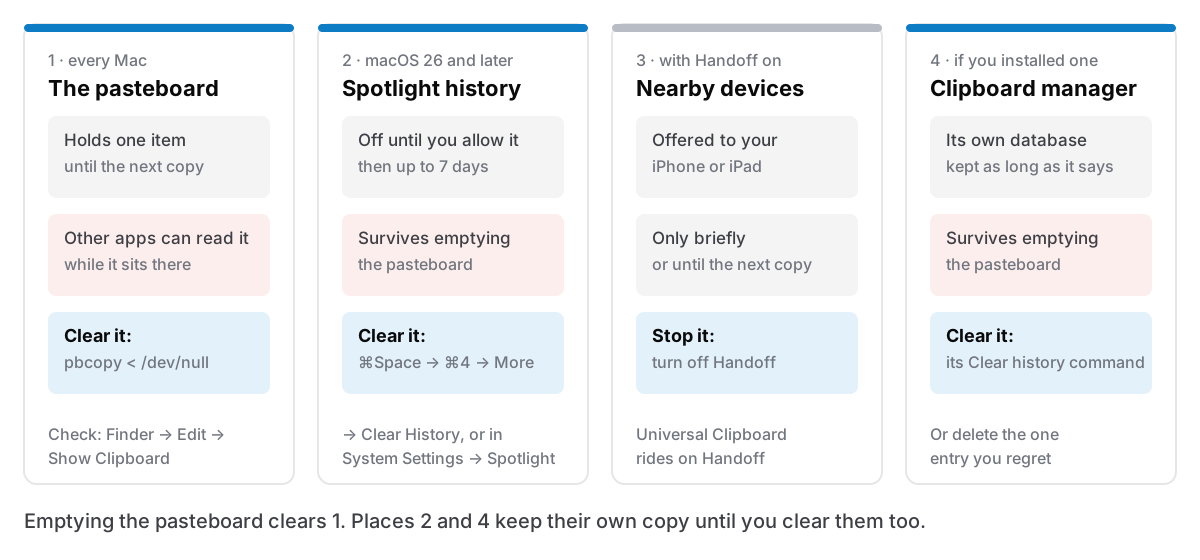
People usually want the clipboard cleared for privacy. You copied a password, a card number or a private message, and you want it gone. If you only empty the pasteboard, the same text can still be sitting one keystroke away in Spotlight or in your clipboard manager.
There's a practical reason to bother as well. In September 2025, Microsoft Threat Intelligence described a new variant of the XCSSET macOS malware with a module that watches the clipboard and swaps cryptocurrency wallet addresses. Their advice was to "always verify that the pasted content matches the intended source." Whatever sits on the clipboard can be read by software running on your Mac, so leave less there.
Step 1: empty the system clipboard
The quickest reliable way is Terminal. Open it from Applications → Utilities and type:
pbcopy < /dev/nullPress Return. pbcopy takes whatever you feed it and puts it on the clipboard, according to its manual page (mirrored at ss64). Feeding it /dev/null means feeding it nothing, so the clipboard ends up empty. Macworld gives the same command in its Finder tips (22 May 2025), noting that otherwise "there isn't an easy way to clear the clipboard."
To check it worked, switch to Finder and choose Edit → Show Clipboard. The window should be empty. Press ⌘ + V in a text field and nothing should appear.
If you'd rather not open Terminal, you have two other options:
- Restart the Mac. Macworld notes the clipboard "gets wiped out every time" you restart.
- Copy something harmless. Select a single space or a throwaway word and press
⌘+C. Strictly, this replaces the clipboard rather than emptying it, but the sensitive item is no longer what pastes. If a clipboard manager or Spotlight history is running, it keeps the old item, so carry on to the next steps.
One thing I wouldn't use for this: killall pboard. It's the right fix when copy and paste stops working, because it restarts the pasteboard service. It can drop what's on the clipboard, but nothing I could find documents that as a way to empty it, so don't rely on it to clear something sensitive.
Step 2: clear Spotlight's clipboard history
macOS 26 Tahoe added a clipboard history inside Spotlight. It's off until you allow it. If you never switched it on, skip this step. If you did, it holds your recent copies even after you've emptied the clipboard in step 1.
To clear it, following Apple's guide to searching your clipboard history:
- Press
⌘+Spaceto open Spotlight. - Press
⌘+4, or click the Clipboard button, to show your clipboard history. - Click the More button and choose Clear History.
macOS 26.1 added a second way. MacRumors reported (4 November 2025) a "Clear Clipboard History" button in System Settings → Spotlight. The same update lets you choose how long items are kept: 30 minutes, 8 hours or 7 days. Macworld's write-up of the same release describes a Results from Clipboard switch there that turns the history off entirely.
If you only want one item gone, MacMost's guide to the Tahoe clipboard history says you can Control-click it and choose Delete. Apple's own page doesn't mention that, so if the option isn't there on your version, clear the whole history instead.
Apple's page warns that "sensitive information may appear on the Clipboard." If you copy passwords regularly and use Spotlight's history, the 30-minute setting is a reasonable compromise.
Step 3: think about your other devices
Universal Clipboard is the feature that lets you copy on a Mac and paste on your iPhone. Apple's Universal Clipboard article says the copied item "is automatically added to the clipboard of your other nearby device", and that "it remains there briefly, or until you replace it by copying something else on either device". It also says Handoff, which Universal Clipboard relies on, is turned on by default.
In practice you rarely need to do anything here. Once you've emptied the Mac's clipboard and enough time has passed, the other device stops offering it. If you already pasted it on your iPhone or iPad, though, it's now on that device's own clipboard. Copy something else there to replace it. If you never use Universal Clipboard and would rather your copies stayed on the Mac, turn off Handoff. Apple's Handoff guide puts the switch in System Settings → General → AirDrop & Continuity (called AirDrop & Handoff on some versions), as Allow Handoff between this Mac and your iCloud devices. Apple's Mac guide to copying between devices lists Handoff as a requirement, so with it off, Universal Clipboard has nothing to work with. Handoff also passes open documents and web pages between devices, so you lose that as well.
Step 4: clear your clipboard manager
A clipboard manager exists to remember what you copied, so emptying the system clipboard does nothing to it. It's also where a sensitive copy is most likely to stay, because managers keep hundreds of items or weeks of copies. Paste, for example, keeps 30 days by default, according to its help page linked below. Here's where the clear command lives in the common ones, from each app's own documentation, read on 20 October 2026.
| App | Clear everything | Remove one item | Source |
|---|---|---|---|
| Maccy | Clear in its menu, or ⌥ + ⌘ + ⌫. Pinned items stay unless you hold ⌥ | Select it, press ⌥ + ⌫ | Maccy README |
| Alfred | Type clear in Alfred, then pick the last 5 minutes, 15 minutes or everything | fn + Delete on the item | Alfred help |
| Raycast | Delete All Entries, or Delete Entries… for the last few minutes or hours | Delete Entry, ⌘ + X | Raycast manual |
| Paste | Erase History in Paste Settings → General. Pinned items and Pinboards stay | Not covered on that page | Paste help |
| Cyanote | Clear history… at the foot of the clipboard window, or in Settings. Pinned snippets stay | Delete from the item's menu | Cyanote (my app) |
Most of these keep pinned items when you clear, so if you once pinned something sensitive, delete it separately. And Alfred and Raycast both let you clear just the last few minutes, which is the fastest fix when the problem is one thing you copied a moment ago. I go into more detail in my posts on Alfred's clipboard history and on moving off Maccy.
In Cyanote, the clear removes every history entry, images included, after asking you to confirm. It doesn't empty the system clipboard, so run step 1 as well. If you switch the clipboard manager off in Settings, it erases everything it stored: the history, the pinned snippets and your recent searches. Turning it back on starts empty. The history keeps 500 items by default, adjustable from 10 up to 1,000. It lives in a local database on your Mac and is never synced anywhere.
Make it automatic for passwords
Clearing by hand works for the odd mistake. For passwords, which you copy all the time, let the software do it.
Use your password manager's auto-clear. 1Password's support page on copying passwords says it "automatically removes copied passwords from the clipboard". The setting is called Remove copied information and authentication codes after 90 seconds, it's on by default, and it lives in Settings → Security. Bitwarden's FAQ says to open its preferences and set Clear clipboard to "a value other than Never". Check yours isn't set to Never.
Check your clipboard manager skips them. A password manager can label what it copies as private. The convention, published at nspasteboard.org, defines a type for content that "should be treated as confidential" and another for content that "should not be recorded or displayed in a pasteboard history." Maccy's README lists both among the types it ignores, and Cyanote skips both too. Alfred's help says it ignores concealed data by default, and Raycast's manual says it excludes passwords and Keychain Access. My post on what a clipboard manager isn't supposed to remember explains the convention and gives a thirty-second test you can run on yours.
The convention only works when the app you copy from uses it. A token copied out of Terminal, a code from an email or an address from a spreadsheet carries no label, so your clipboard manager records it like anything else. That's when the clear commands in step 4 earn their keep. Alfred's "last 5 minutes" and Raycast's Delete Entries… fit this case well, and in Cyanote I just delete the one entry.
What each method actually clears
| What you do | Pasteboard | Spotlight history | Nearby devices | Clipboard manager |
|---|---|---|---|---|
pbcopy < /dev/null | Emptied | Kept | Expires soon after, unless already pasted there | Kept |
| Copy a space | Replaced | Old item kept | Replaced | Old item kept |
| Restart the Mac | Emptied | Kept until cleared or expired | Expires soon after, unless already pasted there | Kept |
| Spotlight → More → Clear History | Unchanged | Cleared | Unchanged | Kept |
| Manager's Clear history | Unchanged | Kept | Unchanged | Cleared, pins usually kept |
| Password manager auto-clear | Cleared after its timer | Not reliably covered | Expires soon after, unless already pasted there | Kept, unless it honours the private label |
The Spotlight column is my inference from how Apple describes the feature, as a history kept separately from what's on the clipboard. Apple doesn't spell out what a restart does to it. If it matters, clear it explicitly.
If you'd rather keep a history you control
A clipboard history is still useful, as long as you know where it lives and how to clear it. Spotlight's version is built in and caps out at seven days, and for many people that's enough. If you want more, look for a manager that skips password-manager copies, has a quick way to delete one entry, and keeps its history on your Mac rather than on someone else's server. I wrote a longer guide to clipboard history on a Mac that compares the options.
Cyanote is one of them: a searchable clipboard history opened from any app with ⌥ + ⇧ + V, kept locally next to your notes and tasks, with no account and no sync. If you need your history on your iPhone too, it isn't the right pick. Paste syncs its history across devices, according to its App Store listing (read 20 October 2026), and suits you better. Cyanote for Mac is $7.99 once, with no subscription. The Windows edition is a separate $7.99 purchase on the Microsoft Store. There's more on the clipboard manager page.
The order I'd do it in
When I've copied something I shouldn't have, I do three things. I run pbcopy < /dev/null, I delete that one entry from my clipboard history, and if Spotlight's history is on, I clear it. That takes about ten seconds. For passwords, I leave it to the password manager's timer and a clipboard manager that skips them.