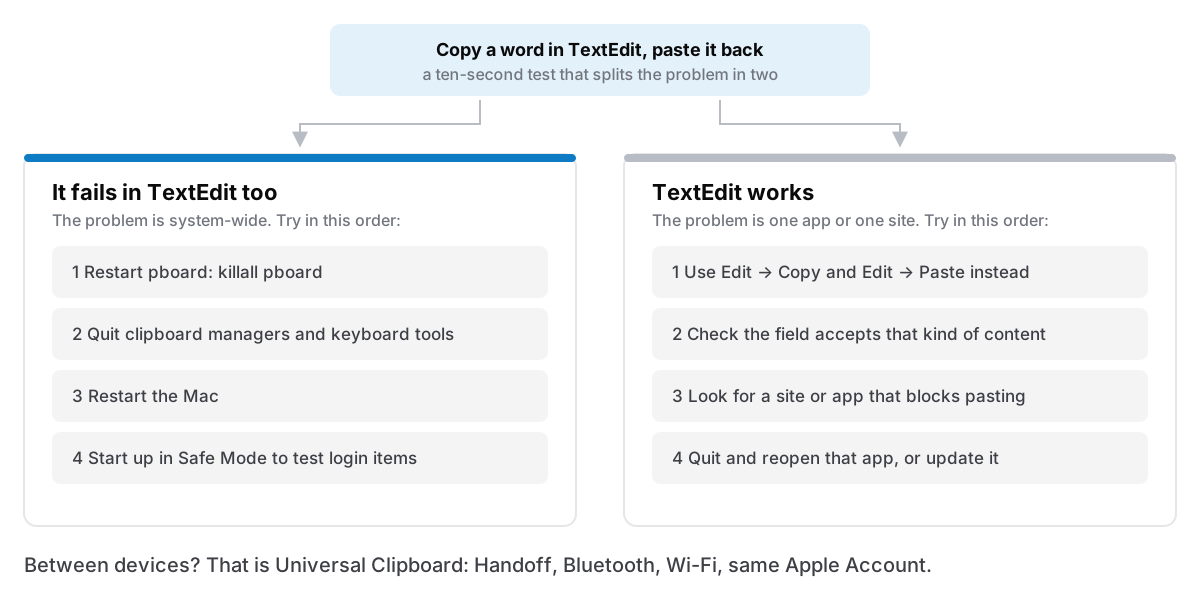
When copy and paste stops working on a Mac, first work out whether it has stopped everywhere or in one place. Open TextEdit, type a word, select it, press ⌘ + C, then ⌘ + V. If that fails too, the system clipboard service is the usual suspect: open Terminal and run killall pboard, which restarts it. If TextEdit works, the problem is the app or website you were using, so start there rather than with the system.
I make Cyanote, a notes app with a clipboard manager built in, so I've spent more time than most inside the Mac's copy and paste plumbing. That includes the bugs I caused myself. This post is the order I'd check things in. Everything here works on a Mac with nothing extra installed.
The short version
- Test in TextEdit first. It tells you whether the problem is system-wide or confined to one app, and that decides every step after it.
- System-wide: run
killall pboardin Terminal, then quit any clipboard managers and keyboard tools, then restart. Safe Mode tells you if something that loads at startup is to blame. - One app or website: use the Edit menu instead of the shortcut, check the field accepts what you copied, and check the site isn't blocking paste on purpose.
- A text expander or keyboard tool has gone dead: look for Secure Input, usually left on by a password field.
- Between your Mac and iPhone: that's Universal Clipboard, which needs Handoff, Bluetooth, Wi-Fi and the same Apple Account on both.
How copy and paste works on a Mac
A copy and paste is three hand-offs, and it can break at any of them. The app you copy from writes the selection to the pasteboard. The pasteboard holds it. The app you paste into reads it back. Apple's developer documentation for NSPasteboard puts it plainly: "The pasteboard server is shared by all running apps." That server is a small background process called pboard. Howard Oakley's explainer at The Eclectic Light Company (12 May 2020) describes it as a tiny daemon at /usr/libexec/pboard that apps talk to over XPC.
Those three hand-offs are why the TextEdit test is so useful. If pboard is stuck, every app fails at once, because they all go through it. If only one app fails, pboard is fine and the fault is at the first or last hand-off.
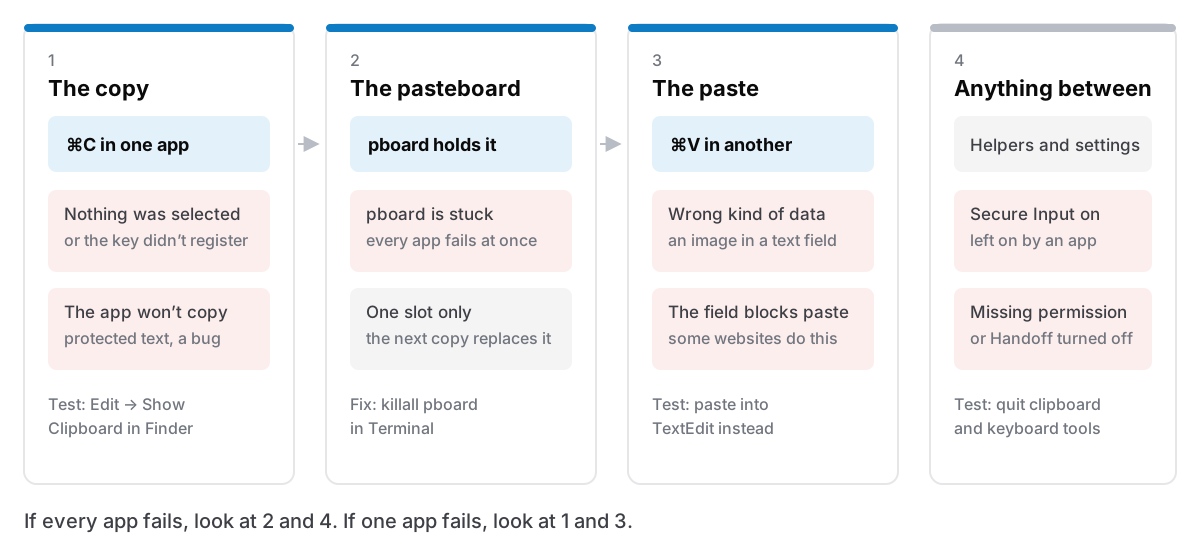
The pasteboard also holds one thing at a time. Sometimes "paste isn't working" means something else got copied in between, and the paste is doing its job with the wrong content. Finder can show you what's actually there: switch to Finder and choose Edit → Show Clipboard. MacMost's short guide notes it shows text and images, and a description such as a filename for anything else. If the window is empty or shows something you didn't expect, the fault is at the copy end.
Step 1: run the TextEdit test
This takes ten seconds and decides which half of this post you need.
- Open TextEdit (it's in Applications) and start a new document.
- Type a word, double-click it to select it, and press
⌘+C. - Click at the end of the line and press
⌘+V.
If the word appears twice, the system clipboard works. Skip to when only one app or website fails. If nothing pastes, try Edit → Copy and Edit → Paste from the menu bar. If the menu works and the shortcut doesn't, the keyboard or a keyboard tool is the problem, not the clipboard. If neither works, carry on with step 2.
Step 2: restart pboard
When copy and paste fails in every app, restarting the pasteboard server is the standard fix, and it's quick. Open Terminal and type:
killall pboardPress Return, then try the TextEdit test again. You don't need sudo, because pboard runs as your own user. If you'd rather not use Terminal, open Activity Monitor, type pboard into its search field, select the process, click the Stop button (the ✕ in the toolbar) and choose Force Quit.
Apple doesn't document this fix on its support site, so treat it as a well-worn workaround rather than an official procedure. OS X Daily described both methods in 2018 and notes the command will "terminate and relaunch the pboard process". macOS starts it again on its own the next time an app needs the clipboard. Anything on the clipboard when you restart it is lost, which hardly matters if pasting wasn't working anyway.
Step 3: quit clipboard managers and keyboard tools
If restarting pboard didn't help, or the problem comes back, look at what else is watching your keyboard or your clipboard. That means clipboard managers, text expanders, window managers, launchers with a clipboard feature, remote-desktop tools and keyboard remappers. Quit each one from its menu bar icon, then run the TextEdit test again.
I'd put my own app on that list too. A clipboard manager reads every copy and, when you pick an entry, pastes on your behalf. Both are places where it can get in the way. Cyanote had a bug that sent its paste to the wrong app, and I wrote up what went wrong and how it was fixed. If everything works with the tools quit, start them again one at a time until it breaks, and you have your culprit.
When a text expander or keyboard tool goes dead
There's one specific version of this worth knowing. If ⌘ + C and ⌘ + V work fine but your text expander, or a clipboard manager that watches the keyboard, has stopped responding everywhere, the likely cause is Secure Input.
Secure Input is a macOS mode that stops other apps from reading what you type. Apple's technical note TN2150 says that while it's on, "keyboard events cannot be intercepted". Password fields switch it on automatically. TextExpander's support page on Secure Input says it "is generally enabled when you type into a password field". It's meant to switch off again as soon as you leave the field. When an app leaves it on, Apple's note warns that it affects every tool that watches the keyboard, "even when the secure event process has been moved to the background."
To find out which app is holding it, paste this into Terminal:
ioreg -l -w 0 | grep SecureInputIf it prints a line containing kCGSSessionSecureInputPID, the number after it is the process ID of the app holding Secure Input. Find that number in Activity Monitor's PID column. Don't trust it blindly, though. An Apple engineer on the Apple Developer Forums calls this lookup "best effort", and Keyboard Maestro's wiki warns the system can blame the frontmost app by mistake. The usual fixes are dull ones: close the browser tab or app with the password field, quit your password manager, or log out and back in.
Terminal has its own version you might have switched on and forgotten: Terminal → Secure Keyboard Entry. Apple's Terminal guide says it stops other apps "from detecting and recording what you type". That's sensible when you're typing passwords in a shell. It also stops keyboard tools while Terminal is in front.
Secure Input doesn't stop the clipboard itself. If ⌘ + V fails in TextEdit, look elsewhere.
When a clipboard manager copies but won't paste
A clipboard manager that pastes for you does it by pressing ⌘ + V on your behalf, and macOS only lets an app do that with Accessibility permission. Apple's guide to allowing accessibility apps lists them in System Settings → Privacy & Security → Accessibility. Without that permission, picking an entry puts it on the clipboard and then nothing arrives. Pressing ⌘ + V yourself still works.
The confusing case is when the switch is already on. macOS ties that permission to the app's code signature. If an update arrives with a different signature, as happened with my own early self-signed builds, the switch can stay on while no longer applying to the new version. The fix is to select the app in that list, remove it with the minus button, and add it again. I explain why a Mac app asks for Accessibility in more detail, including what it can and can't see. Since version 1.0.4, Cyanote tells you when this permission is missing and offers to open the right settings pane, rather than closing without pasting.
Step 4: restart, then try Safe Mode
If none of that worked, restart the Mac. It's dull, but it restarts every process involved at once, including the ones you didn't think to quit.
If it fails again after a restart, Safe Mode tells you whether something that starts up with your Mac is responsible. Apple's guide to starting up in safe mode says it "can help you identify whether issues you're experiencing are caused by software that loads as your Mac starts up."
- Apple silicon: shut down, then press and hold the power button until you see Loading startup options. Select your startup disk, hold
Shift, and click Continue in Safe Mode. - Intel: start up and hold
Shiftstraight away until the login window appears.
"Safe Boot" appears in the menu bar when it worked. If copy and paste works in Safe Mode, something in your login items or a background app is the cause. Go back to step 3 and work through them one at a time.
When only one app or website fails
If the TextEdit test passed, leave pboard alone. The cause is at one end of the hand-off.
Look at the Edit menu. Click Edit in the menu bar of the app that's failing. If Copy is greyed out, the app doesn't think anything is selected. If Paste is greyed out, Apple's copy and paste guide says plainly that "you can't paste content in that location". The field won't take it, whatever you do with the shortcut.
Check what kind of thing you copied. An image won't paste into a plain-text field such as a Terminal window or a code editor, and a file copied in Finder pastes as a file rather than its contents. Paste into TextEdit to see what's actually on the clipboard. If formatting is the problem, ⌥ + ⇧ + ⌘ + V is Paste and Match Style, listed in Apple's Mac keyboard shortcuts. Not every app supports it.
Check whether the site blocks paste. Some websites stop you pasting into password or confirmation fields. That's deliberate, and nothing on your Mac is broken. It's also discouraged: NIST's digital identity guideline SP 800-63B-4 says services "SHOULD permit claimants to use the 'paste' function when entering a password" so password managers work. Your password manager's autofill usually gets around it.
Restart the app, then update it. Quit it with ⌘ + Q rather than just closing the window, and open it again. If it keeps happening in one app after an update, that's a bug for its developer. Send them the steps from your TextEdit test, since it shows the system clipboard was fine.
When Universal Clipboard won't paste between devices
Copying on your iPhone and pasting on your Mac works through a different path, called Universal Clipboard. Apple's Universal Clipboard article lists what it needs: devices near each other, the same Apple Account on both, Bluetooth and Wi-Fi turned on, and Handoff turned on.
On the Mac, Handoff is in System Settings → General → AirDrop & Continuity (called AirDrop & Handoff on some versions). Turn on Allow Handoff between this Mac and your iCloud devices, per Apple's Handoff article. The same article covers where to find the switch on an iPhone or iPad.
Timing matters too. Apple says the copied item stays there "briefly, or until you replace it by copying something else on either device", so paste soon after you copy. In 9to5Mac's write-up of their own fix (16 April 2025), the thing that made it reliable was keeping both devices unlocked. If you move things between a Mac and a phone a lot, I've written up other ways to get a note to your phone without sync.
If what you copied is gone
Sometimes the paste works fine and the problem is that the thing you wanted was replaced by a later copy. The clipboard only holds one item, so without a history it's gone.
On macOS 26 Tahoe and later, Spotlight has a clipboard history. Press ⌘ + Space, then ⌘ + 4 (Apple's guide). The first time, it asks you to allow it, so it can't recover anything copied before you switched it on. Since macOS 26.1 you can keep items for 30 minutes, 8 hours or 7 days, according to MacRumors (4 November 2025). Cult of Mac notes that pasting from Spotlight strips formatting. If you're on Tahoe or later, it's worth switching on now and setting to seven days. My guide to clipboard history on a Mac compares it with what clipboard managers keep.
For history beyond seven days, you need a clipboard manager. Cyanote keeps your copies in a local database on your Mac, searchable and opened from any app with ⌥ + ⇧ + V, next to your notes and tasks. It's 500 items by default and adjustable up to 1,000. It has no sync, so copies on one Mac stay on that Mac. If you want your history synced to an iPhone, or want to find a screenshot by the words in it, Paste does both, according to its App Store listing (read 18 October 2026), and suits you better. I compare the two on the Paste alternatives page. Cyanote is $7.99 once, with no subscription and no account. The Windows edition is a separate $7.99 purchase on the Microsoft Store. There's more on the clipboard manager page.
Which fix to try first
Next time copy and paste stops working on your Mac, run the TextEdit test before you change anything. If it fails, killall pboard is the first fix, and in my experience it is usually enough. If it passes, leave the system alone and look at the one app or site in front of you.