A new Mac is one of the few days a year when your entire working setup is genuinely at risk, and it does not feel like it, because Apple has made the transfer so smooth that people assume everything came across.
Most of it does. The parts that do not are predictable, and the failure is usually not noticing for three weeks, by which time the old machine has been wiped, sold, or handed to a family member.
Here is what actually moves, what does not, and what to check before the old Mac is gone.
What Migration Assistant does well
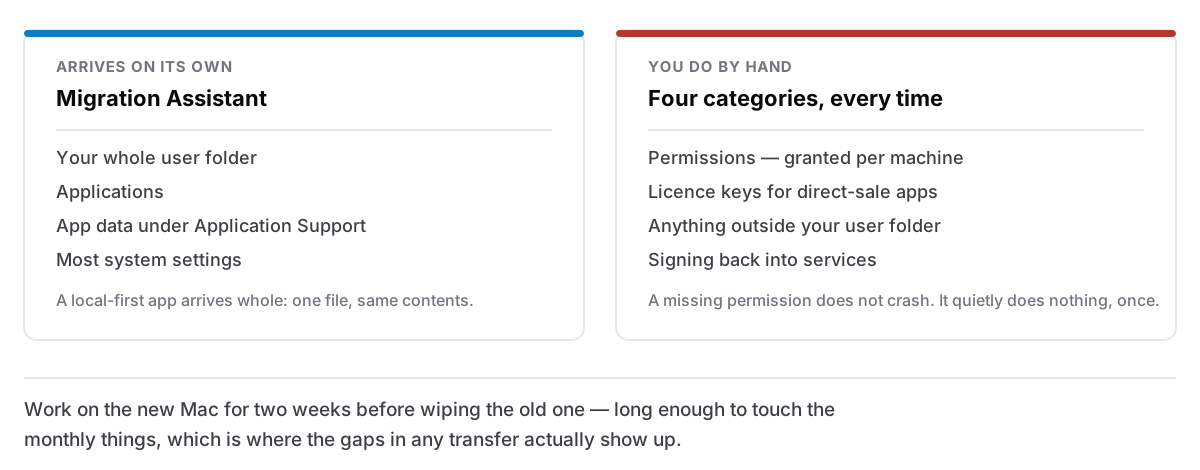
Migration Assistant — over a cable, over the network, or from a Time Machine backup — copies your user folder, your applications, and most system settings. For local-first apps, this is the whole job: their data lives in your Library folder, so it comes across with everything else.
If your notes live in one file under ~/Library/Application Support/, that file arrives on the new machine with the same contents and the same path, and the app opens on the new Mac showing exactly what it showed on the old one. Knowing where your notes actually live is what lets you verify that in ten seconds rather than hoping.
It is genuinely good, and I would use it every time over setting up from scratch. Just do not let "the transfer worked" become "everything transferred".
What does not come across
Permissions. macOS grants privacy permissions per machine, and deliberately so — Accessibility, Full Disk Access, Screen Recording, Microphone, Notifications. Expect to grant them again on the new Mac.
This is where things break silently. An app that needs Accessibility to send a keystroke does not crash without it; it just quietly does nothing, once, at the moment you needed it. Any app that pastes for you, moves windows, expands text or responds to a global hotkey is in this category. Why a Mac app asks for Accessibility in the first place covers what that permission actually allows. The short version is that it is powerful, per-machine, and worth re-checking rather than assuming.
Licences for directly-sold apps. Anything you bought outside the App Store may ask for its key again on a new machine. Before you migrate, find the emails. Search your inbox for the app names and file the keys somewhere you will still have access to if this Mac is the one that dies. App Store purchases re-download from your Apple account and need nothing.
Anything outside your user folder. Command-line tools installed into /usr/local, LaunchDaemons, fonts installed system-wide, VPN profiles, printer drivers, anything a package manager put in a system directory. Migration Assistant is conservative about system locations, correctly, and that means some of your environment is not in the box.
Things that were never local. Anything in a service needs a sign-in, and if the service used two-factor tied to an app on your phone, that is fine — but if it was tied to something on the old Mac, sort that out before wiping it.
SSH keys and credentials, if you have them. They are in your user folder and usually come across, but permissions on ~/.ssh occasionally do not survive intact, and a key with the wrong mode is refused.
The order that avoids trouble
- Update the old Mac's apps first, so you are not migrating a version that the new machine's macOS no longer runs.
- Take a real backup of the old Mac — Time Machine, or a manual copy of anything precious to an external drive. Migration is not a backup: it is a copy operation that can fail halfway, and if it does you want an untouched second copy.
- Export from anything you are worried about. Notes especially. A plain readable export costs a minute and makes the whole migration reversible; if the app's own file arrives corrupted, the export is what saves you. Same principle as getting your notes out before you need to.
- Migrate.
- Work on the new Mac for two weeks with the old one still intact. This is the important one. Two weeks is long enough to touch the monthly things: the invoice, the report, the app you only open when something specific happens.
- Then wipe the old Mac.
The check that takes ten minutes
Do this on the new machine on day one, in this order:
Open every app you rely on and do one real thing in it. Not launch it — use it. Write a note and reopen it. Trigger the global hotkey. Paste from clipboard history. Send a test message. The apps that need a permission will fail at exactly this step, which is the point.
Check your data is actually there, not just the app. Open the app's settings and find where it says its files live, then look in that folder in the Finder. An app that starts with an empty library because it created a fresh one is a very recoverable problem on day one and a catastrophe in a month.
Check your automatic backups restarted. Time Machine needs its drive re-selected. Any app that keeps its own rolling backups is now writing them to a new machine's folder and its history did or did not come with it, worth confirming rather than assuming.
Check the things that run at login. System Settings → General → Login Items. Some come across, some do not, and the ones that do not are exactly the background tools you never think about because they have always just been running.
For Cyanote specifically
Everything is in one SQLite file under ~/Library/Application Support/app.cyanote.desktop/, with the automatic daily backups in a backups/ folder beside it. Migration Assistant carries the folder across whole, so notes, tasks, calendar, habits, routines and clipboard history all arrive together and the app opens on the state you left.
Two things to redo by hand: the licence key, so keep the checkout email, and macOS Accessibility permission if you use clipboard pasting. The app will ask, and it offers to open the right settings pane rather than leaving you to find it.
If you moved your data folder somewhere custom on the old machine — an external drive, a synced folder — check that the path exists on the new one before launching. A path that is not there is the one case where the app cannot guess what you meant.
The general principle
The apps that survive a machine change with no drama are the ones whose data is a file you can point at. When you know where your work lives, a new Mac is a copy operation you can verify with your own eyes.
When you do not know where it lives, every migration is an act of faith, and you find out how much faith was warranted at the worst possible moment, which is after the old machine has been erased. That, more than anything else, is the practical argument for keeping your work in a form you can see.