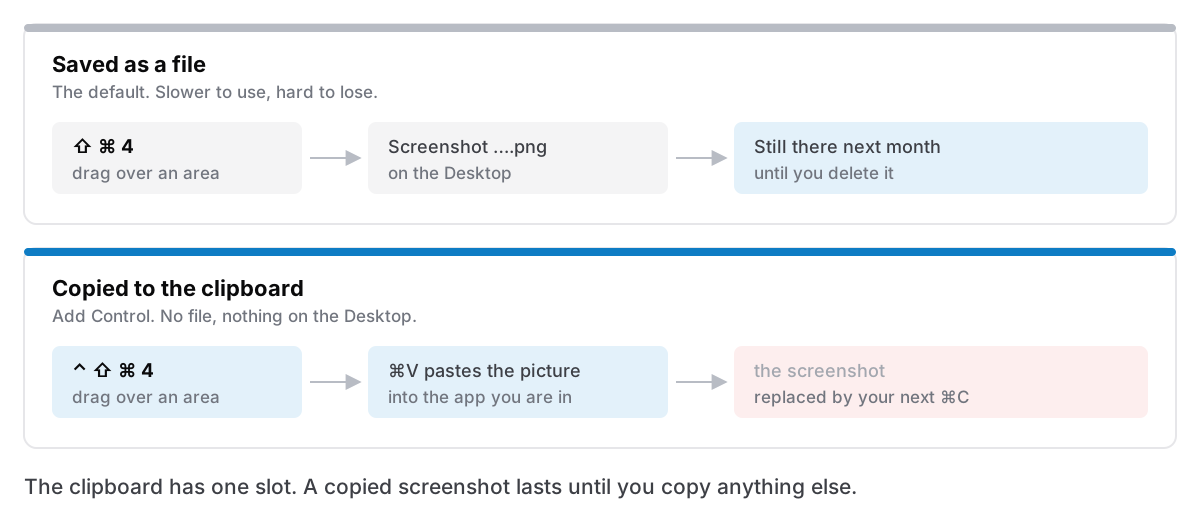
To copy a screenshot to the clipboard on a Mac, hold Control while you press the normal screenshot shortcut. Control + Shift + ⌘ + 4 lets you drag over part of the screen and puts the picture on the clipboard instead of saving a file. Then press ⌘ + V wherever you want it: an email, a chat, a document. Apple's own guide to taking screenshots on a Mac describes the same trick.
That is the whole answer for most people. The trouble starts afterwards. A screenshot on the clipboard is not a file, and it is not kept anywhere. Copy one more thing and it is gone. This post covers the shortcuts, how to make the clipboard the default, and what your options are when you need that screenshot back an hour later.
The short version
- Copy instead of save: add
Controlto the shortcut.Control+Shift+⌘+3for the whole screen,Control+Shift+⌘+4for an area. - Make it the default: press
Shift+⌘+5, open Options, and choose Clipboard under Save to. - Turn a copied screenshot into a file later: open Preview and choose File → New from Clipboard.
- Get back a screenshot you copied over: only possible if something was keeping a history. On macOS 26 Tahoe that can be Spotlight's clipboard history, if you switched it on. Otherwise you need a clipboard manager that keeps images.
I make Cyanote, a notes app with a clipboard history built in, so keep that in mind when I get to the last part. Everything before it works on a Mac with nothing installed.
The shortcuts, with and without Control
Every screenshot shortcut on the Mac has a clipboard version. You hold Control with the rest of the keys and, in Apple's words, the screenshot is copied "so you can paste it somewhere". No file is written and nothing lands on the Desktop.
| What you want | Saves a file | Copies to the clipboard |
|---|---|---|
| The whole screen | Shift + ⌘ + 3 | Control + Shift + ⌘ + 3 |
| An area you drag over | Shift + ⌘ + 4 | Control + Shift + ⌘ + 4 |
| One window or menu | Shift + ⌘ + 4, then Space | Control + Shift + ⌘ + 4, then Space |
| The Screenshot toolbar | Shift + ⌘ + 5 | Set Options → Save to → Clipboard |
The shortcuts come from Apple's macOS 26 user guide and its support article Take a screenshot on Mac, published 14 September 2026.
In window mode (Space), you click the window you want instead of dragging. The pointer turns into a camera and highlights each window as you move over it.
Make the clipboard the default
If you nearly always paste screenshots straight into something, holding four keys gets old. You can change where screenshots go, so the plain shortcuts copy instead of save.
- Press
Shift+⌘+5. The Screenshot toolbar appears at the bottom of the screen. - Click Options.
- Under Save to, choose Clipboard.
- Press
Escto close the toolbar.
Apple's guide says to choose one of the preset locations under Save to, and MacMost's Spotlight clipboard walkthrough (22 September 2025) shows Clipboard as one of them. Switch back to Desktop the same way when you want files again.
I would think twice before you do this. With files as the default, a screenshot you forget about is still on the Desktop tomorrow. With the clipboard as the default, it is gone the moment you copy a link. The Control habit keeps the two separate: plain shortcut when you want to keep it, Control when you only want to paste it.
The floating thumbnail: a third way to copy
After you take a screenshot, a small thumbnail sits in the bottom-right corner for a few seconds. Apple's guide says you can drag it straight into a document, an email, a note or a Finder window. Apple's support article adds that Control-clicking the thumbnail lets you save that one screenshot to the clipboard instead of the Desktop.
So if you forgot to hold Control, you have a few seconds to fix it. Hover over the thumbnail and it stays put while you decide.
If the thumbnail gets in your way, turn it off in Shift + ⌘ + 5 → Options → Show Floating Thumbnail. With it off, a screenshot goes straight to wherever Save to points.
Pasting it, and turning it into a file
A screenshot on the clipboard pastes into anything that accepts images: Mail, Messages, Slack, Pages, Keynote, Notes, most notes apps, and most web forms with an image field. Where it usually does not work is a plain-text field, like most terminal windows or a code file. Paste a screenshot there and you typically get nothing, because there is no image to put there.
If you later decide you want it as a file after all, Preview does that. Open Preview and choose File → New from Clipboard (⌘ + N). TidBITS' guide to Preview says it creates a new untitled document holding whatever image is on the clipboard. Save it with ⌘ + S and choose PNG or JPEG. The command is greyed out when the clipboard holds text, which also tells you quickly whether your screenshot is still there.
On macOS 26 Tahoe, Apple notes that supported Macs can capture in HDR, which saves as HEIF rather than PNG. That is set in the same Options menu. For pasting into email or chat, leave it on the standard setting.
Sending it to your iPhone
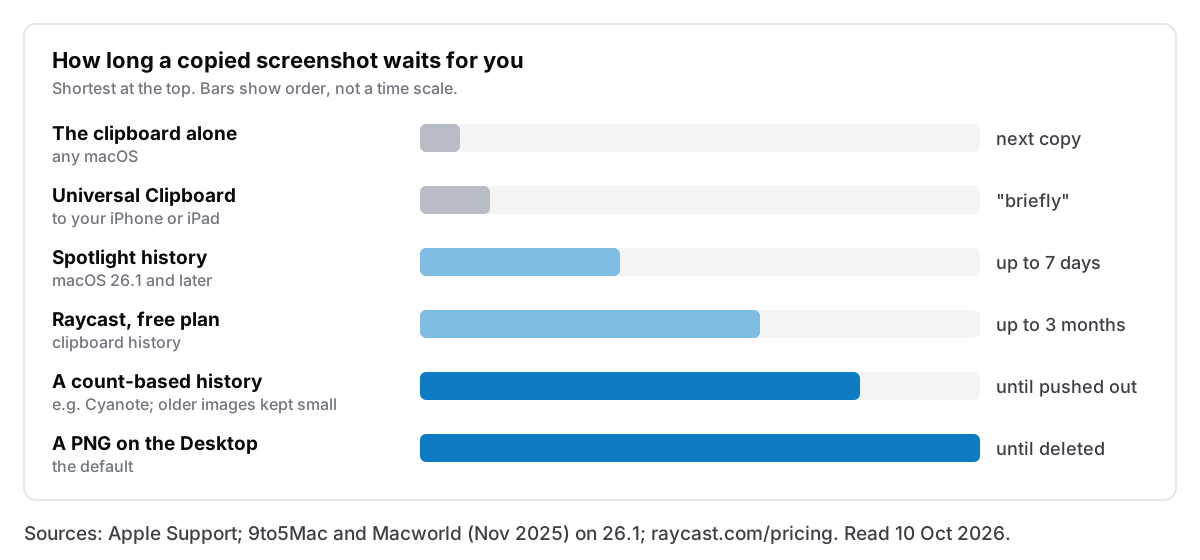
Universal Clipboard sends the copy to your other Apple devices. Copy the screenshot on the Mac, then paste on your iPhone or iPad. Apple's Universal Clipboard article says both need the same Apple Account, Bluetooth, Wi-Fi and Handoff turned on, and the copy stays "briefly", or until you copy something else on either device. It is good for one image right now. It is no use for anything you need later. I have written up other ways to get a note to your phone without sync for the cases it does not cover.
The catch: one slot
The Mac clipboard holds one thing at a time. A copied screenshot is that one thing until you copy anything else: a URL, a word you want to look up, a password. Then the screenshot is gone, and unlike the file version, there is no copy of it on the Desktop to go back to.
This is usually fine. You take the screenshot, you paste it, you move on. It goes wrong when there is a gap between the two: you copy the screenshot, go to find the right Slack thread, copy the thread's link to check something, and the screenshot has gone. If what you captured was a one-off error message or a booking confirmation that has since changed, you cannot take it again. The same one-slot problem is behind every "where did my copy go" moment, and I go through the ways to copy several things and paste them later in a separate post.
Getting a copied screenshot back
There are two built-in answers and one installed one.
Spotlight clipboard history (macOS 26)
macOS 26 Tahoe added a clipboard history to Spotlight. Press ⌘ + Space, then ⌘ + 4, or click the clipboard button beside the search field (Apple's guide). The first time, it asks you to switch it on.
Apple's page does not say which kinds of content it keeps. MacMost's walkthrough shows it in action: screenshots sent to the clipboard appear in the list, each as its own item, and you can paste them back one at a time. Since macOS 26.1 you choose how long it keeps things, 30 minutes, 8 hours or 7 days, in System Settings → Spotlight (9to5Mac and Macworld, both 4 November 2025). Cult of Mac says the default is eight hours.
It has two limits. It only records after you switch it on, so it cannot rescue the screenshot that made you look this up. And seven days is the most it keeps. For the "I copied that an hour ago" problem, though, it is free and already installed. If you are on Tahoe, switch it on now and set it to seven days. My longer piece on clipboard history on a Mac goes through what it keeps and what older Macs have instead.
A clipboard manager that keeps images
A clipboard manager runs in the background and saves every copy to a list on disk, so it survives a restart and lasts longer than seven days. For screenshots, check that it keeps images as well as text. Most do now, but not all of them say so on their sites. Here is what each one's own page says, read on 10 October 2026:
| App | Price | Images | How long it keeps them |
|---|---|---|---|
| Spotlight (macOS 26) | Free, built in | Yes, per MacMost | Up to 7 days (26.1 and later) |
| Raycast | Free; Pro $10/month | Yes | 3 months free; unlimited on Pro |
| Paste | $3.99/month, $29.99/year or $99.99 lifetime | Yes, and it searches text inside screenshots | Unlimited |
| Maccy | Free; $9.99 on the App Store | Yes, with OCR search since 2.4.1 (App Store release notes) | Not stated |
| Cyanote | $7.99 once | Yes, with an Images tab | 500 items by default; only the latest screenshots stay full size, older ones as small previews |
If screenshots are a big part of your day, the feature to look for is text search inside images. Paste can find a screenshot by the words in it, and so can Maccy, according to its App Store release notes. Cyanote cannot: you find an image by when you copied it, not by what it says.
Screenshot apps are a separate option. Apps like CleanShot X ($35 once for the basic licence) keep their own capture history, which is a different thing from a clipboard history. If most of your screenshots are for documentation or bug reports, a dedicated screenshot app will serve you better than any clipboard manager.
And whichever you pick, check what it does with passwords. A history that keeps every copy also keeps every password you paste unless the app skips them. What your clipboard manager should not remember explains how to test that.
Where Cyanote fits
Cyanote is a notes, tasks and calendar app for the Mac with a clipboard history built in. As of version 1.2.0, this is what it does with screenshots:
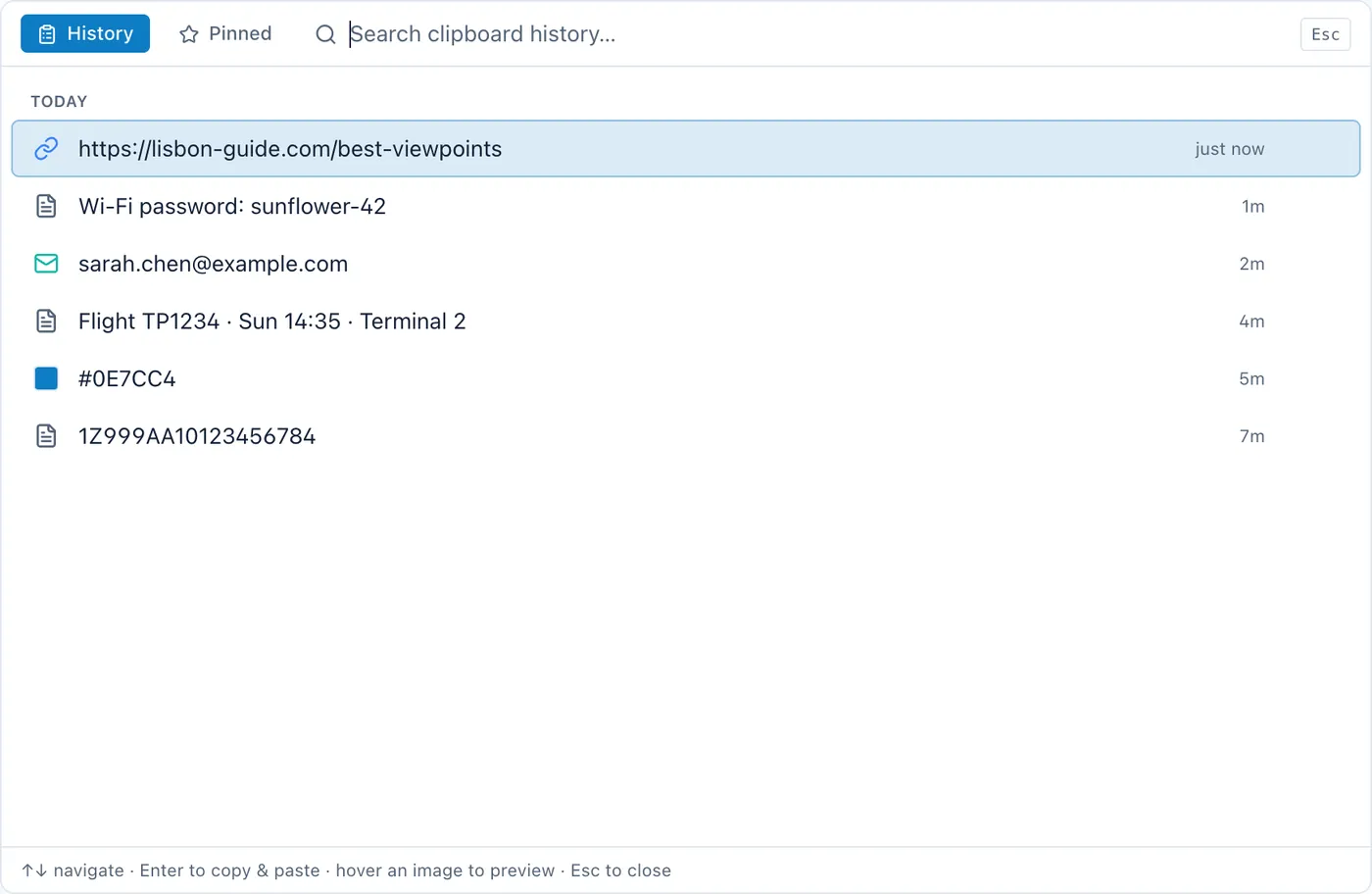
- Screenshots you copy are kept with everything else, in a local database on your Mac. No account, no sync, no upload. The history holds 500 items by default, and you can set it anywhere from 10 to 1,000 in Settings. Only the most recent screenshots are kept at full size, though; older ones stay in the list as small previews.
⇧+⌥+Sopens the history straight on its Images tab, so screenshots are not buried under a day of copied links.⌥+⇧+Vopens the full history from any app.- Pick one and press
Returnand it pastes back into the app you were working in. That needs macOS Accessibility permission, and here is why a Mac app asks for it. - Clear it whenever you like. Settings has a button that deletes the whole history, images included, and keeps your pinned snippets.
What it does not do: it does not read the text inside images, so you cannot search for a screenshot by what is in it. To keep the history small, only your latest screenshots are stored at full size. An older one stays in the list as a small preview, and that preview is what pastes back, so it is fine for recognising a screenshot and poor for reusing it a week later. A single very large image is kept only as a preview from the start. For a screenshot you need to keep, save the file or paste it into a note. Cyanote has no sync, so a screenshot copied on one Mac is not on your other one. If any of those matter, Paste or Raycast is the better pick. I compare Cyanote and Paste in more detail on the Paste alternatives page, including where Paste wins.
Where Cyanote makes sense is when the screenshot is going into a note anyway. The copy and the note it ends up in are in the same app, and the note keeps the image inside its own database rather than linking to a file somewhere. Screenshots and images in your notes covers what happens to images inside notes when you export them. Cyanote runs on macOS 12 and later and is $7.99 once: no subscription, no account. The Windows edition is a separate $7.99 purchase on the Microsoft Store. More on the clipboard manager page.
When the shortcut does nothing
Control + Shift + ⌘ + 4 saves a file anyway. Check that you are holding Control and not Option. On some keyboards they sit next to each other. Also check System Settings → Keyboard, then Keyboard Shortcuts… → Screenshots: if someone has changed the copy shortcuts there, the defaults above will not work.
⌘ + V pastes nothing. Either you have copied something else since, or the app you are pasting into only takes text. Open Preview and look at File → New from Clipboard. If it is greyed out, there is no image on the clipboard.
So: hold Control, and plan for the one slot
For most people, "copy a screenshot to the clipboard on a Mac" is one extra key: hold Control. If you do it all day, set Save to to Clipboard in the Screenshot toolbar. The thing to plan for is the one slot. A copied screenshot lasts exactly until your next copy, so if it matters, either save the file or have something keeping a history. On macOS 26 that can be Spotlight, for up to a week. For longer, a clipboard manager that keeps images, and if you want that history next to your notes on one Mac, with no account, that is Cyanote.