On its own, the Mac clipboard holds one thing. Copy an address, then a link, and the address is gone. To copy multiple items on a Mac and paste them later, you need somewhere for them to wait, and macOS 26 Tahoe now has one built in: press ⌘ + Space, then ⌘ + 4, and Spotlight shows what you copied recently. On older Macs, or when you need more than a few days of memory, a clipboard manager does the job.
That is the short answer. The longer one depends on what "multiple items" means to you, because there are two different jobs hiding in the question, and the tools that do one well often do not do the other.
The short version
- Getting back something you copied earlier: turn on Spotlight's clipboard history on macOS 26, or install a clipboard manager if you need more than seven days or your Mac runs an older macOS.
- Moving a batch of things in order, say five fields from an email into a form: you want a paste stack. Paste, Pastebot and Raycast have one. Spotlight does not.
- No install, any macOS: paste each thing into a Stickies note or a blank note as you go, then copy from there. It is slow, and it works.
- Two things at once in the same document:
Control+Kcuts to a second, private clipboard andControl+Ypastes it back. It is built into macOS and works on any version.
I make Cyanote, which has a clipboard history built in, so weigh what follows with that in mind. It does not have a paste stack, and I will say where the apps that do are the better pick.
Why the second copy erases the first
macOS gives every app one shared place to put copied things, which Apple's developer documentation calls the general pasteboard. ⌘ + C writes to it and ⌘ + V reads from it. Apple's own list of Mac keyboard shortcuts describes the pair in exactly those terms: copy the selected item to the Clipboard, paste the contents of the Clipboard. There is one of it, and it holds one thing at a time.
So a new copy replaces the old one, and unless you have switched on Spotlight's clipboard history (method 1 below), nothing is archived. The fix is to have something keep it for you before you copy the next thing.
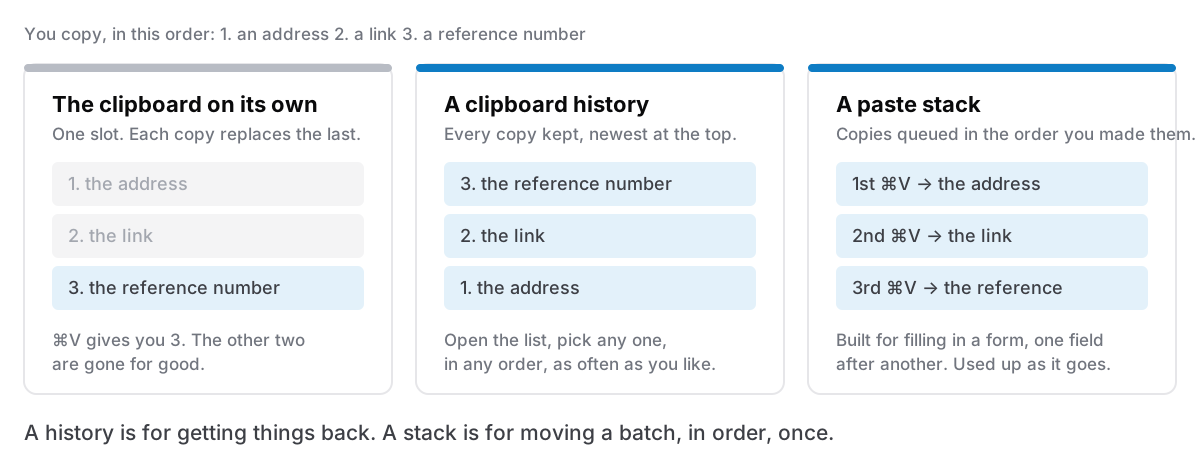
The two jobs from earlier show up clearly here. A history keeps everything and lets you pick any item, in any order, as many times as you like. A stack queues items in the order you copied them and hands them out one per paste, which is what you want when you are moving a batch from one place to another. Every method below does one of these, or a rough version of one.
1. Spotlight clipboard history (macOS 26 Tahoe)
If your Mac runs macOS 26, start here. It costs nothing and is already installed.
- Press
⌘+Spaceto open Spotlight. - Press
⌘+4, or click the clipboard button in the Spotlight bar. - The first time, macOS asks whether to allow results from the Clipboard. Click Allow.
- From then on, everything you copy is listed. Select an item and press
Returnto paste it.
Apple's guide to searching your Clipboard history in Spotlight covers the same steps and says the history holds text, images, links and files you copied recently.
How recently is set in System Settings → Spotlight, under results from the Clipboard. Since macOS 26.1, the choices are 30 minutes, 8 hours or 7 days, with 8 hours as the default, and there is a Clear Clipboard History button in the same place (9to5Mac, 4 November 2025; Macworld, same day). If you want this to help with "multiple items", set it to 7 days. Eight hours is a working day, not a week.
Two things to know before you rely on it. It only records from the moment you click Allow, so it cannot fetch anything you copied before. And Cult of Mac notes that pasting from it strips text formatting, which is fine for links and numbers and less fine for a formatted paragraph.
It is a history, not a stack. There is no way to say "paste these three in order". You open Spotlight, press ⌘ + 4 and pick, once per item.
I wrote a longer piece on what Spotlight's clipboard history keeps and where it stops, including what older Macs have instead.
2. A second clipboard with Control-K and Control-Y
This one is old, built into macOS, and very useful once you know about it. In most Mac text fields (TextEdit, Notes, Mail, and anything else using the standard text system), Control + K cuts from the cursor to the end of the paragraph, or cuts the selection if there is one. Apple's shortcut list describes both behaviours and says the text goes to a clipboard that is available only to the app it was cut from. Control + Y pastes it back.
That clipboard is separate from the normal one. So inside one document you can hold two things at once:
- Select the first piece and press
Control+K. It is cut to the private clipboard. - Select the second piece and press
⌘+Cas normal. - Paste the second with
⌘+Vand the first withControl+Y, wherever you want them.
It has real limits. It cuts rather than copies, so the text leaves its original spot (press ⌘ + Z or Control + Y straight away if you want it to stay). It only works inside the app you cut from. And by default it holds one item, so it doubles your clipboard rather than turning it into a list. Jesse Grosjean of Hog Bay Software has a good write-up of this "kill and yank" system if you want to go further with it, including the hidden setting that makes it hold more.
For rearranging a document, it is the fastest option on this list. For anything that crosses between apps, skip to the next one.
3. Text clippings on the Desktop
Select some text, then drag it (do not copy it) onto the Desktop or into a Finder window. macOS makes a small clipping file, named after the first few words. Drag that file into a document later and the text comes back, with its formatting. Computerworld's guide to text clippings has the details.
Make five clippings and you have five items waiting, each as a file you can see. It works on every version of macOS I know of, needs no setting, and the clippings stay until you delete them.
The trade is that it is all mouse. Clippings are slow to make and slower to find once there are twenty of them on the Desktop. I use this for the occasional thing I want to keep in sight for an afternoon, and not as a workflow.
4. A scratch note
Open Stickies (it is in Applications) and make a new note with File → New Note, or open a blank note in Notes. As you work, paste each thing you want to keep into it. When it is time to use them, copy them out one at a time.
It is a manual history, and that has some advantages. You can see everything at once, edit items before you use them, and it lasts as long as you want. Apple's Stickies guide says notes save automatically, so a crash does not cost you the list.
It costs you a switch to another window on every copy, which is why people who do this a lot go on to install a clipboard manager. But if you need five things moved once a month, a sticky note is the correct amount of software.
5. A clipboard manager with a history
A clipboard manager is a small app that sits in the background and saves every copy to a list. The list is kept on disk, so it survives a restart, and you open it with a keyboard shortcut from any app. Compared with Spotlight's history, the differences that matter are how long it remembers, whether you can keep favourites indefinitely, and whether it has its own shortcut.
Prices and limits change, so here is what each one's own site says as of 4 October 2026:
| App | Price | How long it remembers | Several in order? |
|---|---|---|---|
| Spotlight (macOS 26) | Free, built in | Up to 7 days (26.1 and later) | No |
| Maccy | Free from GitHub; $9.99 on the App Store | Not stated on its site | Not documented |
| CopyClip 2 | $7.99 | Up to 9,999 text clippings | No |
| Alfred (Powerpack) | £34 | 24 hours to 3 months | Merge only (see below) |
| Raycast | Free; Pro $10/month | 3 months free; Pro up to unlimited | Yes, Paste Sequentially |
| Paste | $2.49/month or $29.99/year | Unlimited | Yes, Paste Stack |
| Pastebot | $39, then $19/year for updates | Not stated | Yes, Stacks |
| Cyanote | $7.99 once | 500 items by default, up to 1,000; pins kept until removed | No |
If you only want a longer memory than Spotlight's and nothing else, Maccy is free and well liked, and it is where I would point most people first. I have written about when people outgrow it, and the honest answer is that many never do.
One thing to check in any of them: whether it skips what your password manager marks as private. A history that keeps everything on disk is also a record of every password you pasted. What your clipboard should not remember explains the convention and how to test it.
6. A paste stack, for moving a batch in order
A paste stack is the closest match to the question as worded. You switch the stack on, copy several things in a row, then press ⌘ + V repeatedly in the destination and they come out one after another, in the order you copied them. It is built for jobs like copying a name, an email address, a phone number and a reference from one window into four fields of a form.
Three Mac apps document one on their own pages:
- Paste calls it Paste Stack.
Shift+⌘+Cturns it on, everything you copy then goes into the stack, and⌘+Vpastes the items from top to bottom. There is a button to reverse the order. - Pastebot calls them Stacks and pastes each clipping in turn with
Control+⌘+V. The current version requires macOS 26. - Raycast has a Paste Sequentially command that pastes clipboard items one after another. The sequence resets after a pause, 30 seconds by default.
Alfred does something related but different: with merging turned on, ⌘ + C + C (press C twice while holding ⌘) adds the selection to the end of the previous clipboard item, so several snippets become one block you paste at once. That suits gathering quotes into one paragraph better than filling in a form.
If this is the job you came here for, one of those three is the right tool and a plain history will feel clumsy by comparison. Paste is the most polished of them and is a subscription. I have compared it with Cyanote in more detail in Paste alternatives, and that page says where Paste wins, which includes this.
Which one to use
Pick by the job:
- "I copied something an hour ago and copied over it." Spotlight history, if you are on macOS 26 and had it switched on. Otherwise it is gone, and the fix is to turn something on now so it does not happen again.
- "I keep needing the same few things." Pinned items in a clipboard manager. A handful of snippets you paste every week is what pins are for, and Spotlight's history cannot keep anything past seven days.
- "I move batches of fields between windows." A paste stack: Paste, Pastebot or Raycast.
- "I am rearranging one document."
Control+KandControl+Y. - "I do this twice a month." A Stickies note. Do not install anything.
Where Cyanote fits
Cyanote is a notes, tasks and calendar app for the Mac with a clipboard history built in, so the copies sit in the same app as the notes they usually end up in. What its clipboard does, as of version 1.1.0:
- It keeps your copies, text and images, in a local database on your Mac: 500 items by default, adjustable from 10 to 1,000 in Settings. It survives restarts, and there is no account and no sync.
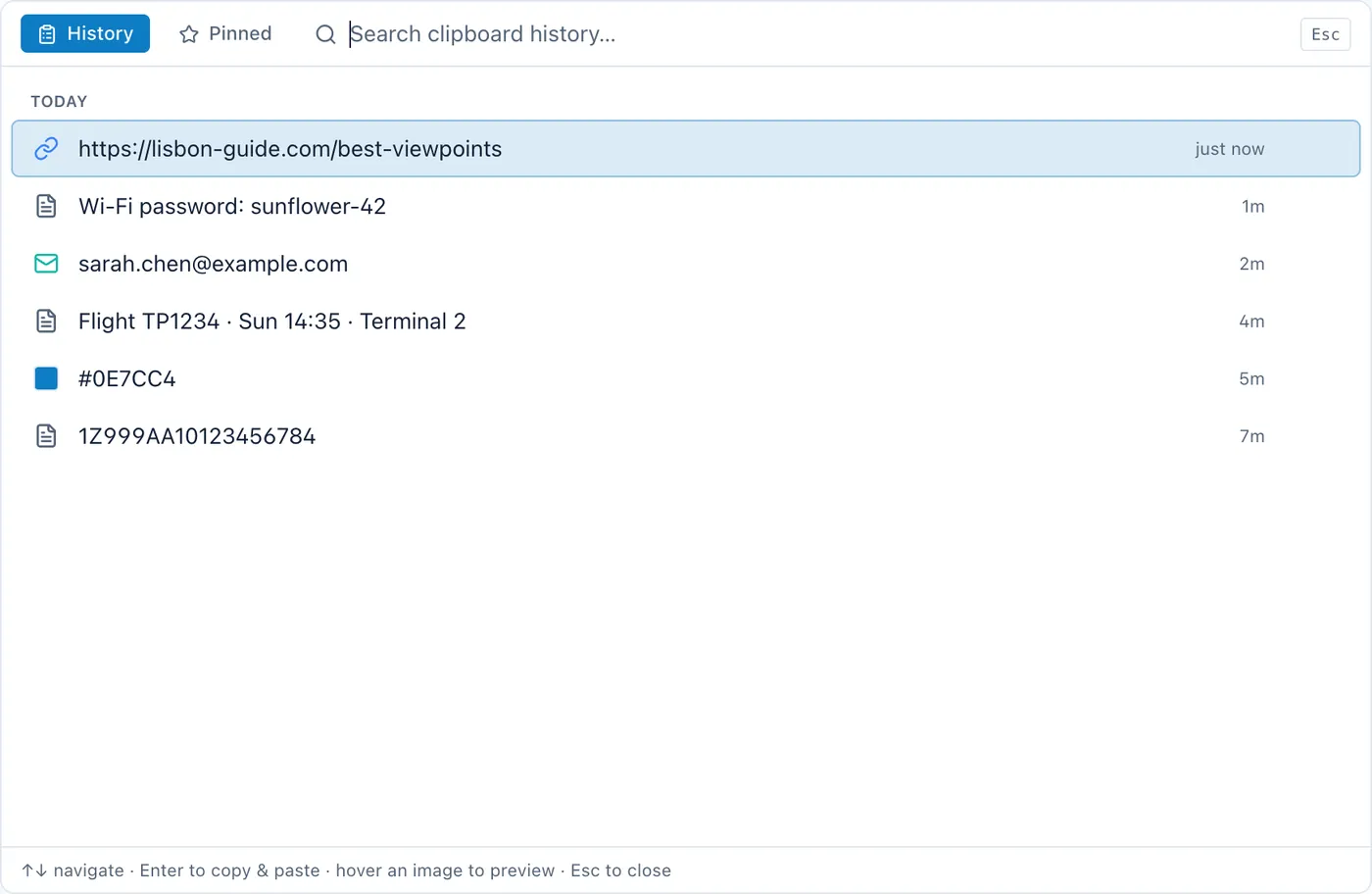
⌥+⇧+Vopens the history from any app. Search narrows it as you type,⌘+1to⌘+9picks one of the first nine, andReturnpastes the selected item back into the app you were in.⌥+⇧+Bopens your pinned snippets, which are kept separately and stay until you remove them, however much you copy in between.- It skips copies that a password manager marks as private.
What it does not do is paste a batch in order. There is no stack: you pick one item per paste. If moving batches is your main use, Paste, Pastebot or Raycast will serve you better. If you mostly want to get things back and keep a few favourites close, alongside your notes and to-dos, that is the case Cyanote is built for. The clipboard manager page shows it in more detail.
It runs on macOS 12 and later and costs $7.99 once, with no subscription and no account. The Windows edition is a separate $7.99 purchase on the Microsoft Store.
Frequently asked
Can a Mac copy more than one thing at once?
Not with the standard clipboard, which holds one item. macOS 26 adds a clipboard history in Spotlight (⌘ + Space, then ⌘ + 4), and Control + K / Control + Y gives you a second, app-only clipboard on any version. For more than that, use a clipboard manager.
How do I paste several copied items in the order I copied them?
Use an app with a paste stack: Paste (Paste Stack), Pastebot (Stacks) or Raycast (Paste Sequentially). Spotlight's history and most clipboard managers, Cyanote included, paste one chosen item at a time.
Does Universal Clipboard keep more than one item?
No. Apple says Universal Clipboard moves what you copied to your nearby devices, where it stays briefly or until you copy something else. It is one item shared between devices, not a history.
Why is my Spotlight clipboard history empty?
Usually because it was never allowed, or it was allowed after the thing you copied. It also expires items on the timer you chose in System Settings → Spotlight, 8 hours by default. Set it to 7 days on macOS 26.1 or later if you want it to cover more.
The honest version
For most people on macOS 26, the answer to "copy and paste multiple items" is already on their Mac: switch on Spotlight's clipboard history and set it to seven days. If you need more than a week, pins that last, or a Mac that is not on Tahoe, get a clipboard manager. Maccy is free and is the place to start. If the real job is moving batches of fields in order, get one with a paste stack.
And if you want the history in the same place as your notes and to-dos, on one Mac, with no account, that is Cyanote.