The email arrives at seven in the morning and says your iCloud storage is full. Nothing has visibly broken. The Mac looks the same, the notes are all there, and the only change is a sentence you cannot quite parse about some things no longer being kept up to date.
The reasonable next question — is anything of mine at risk — turns out to be hard to answer, because almost nobody has a clear model of what iCloud Notes is. It is not a folder. It is not a backup. It is not quite a file on your Mac either. This post is the model, and then the three questions that actually bring people here: where are my notes, is this a backup, and what happens if I turn it off.
iCloud Notes is a good system used by an enormous number of people, and nothing here is an argument to stop using it.
What iCloud Notes actually is
An account that holds your notes, with a copy cached on every device signed in to it, kept in step by sync.
That is the whole thing, and each part matters. The account is your Apple Account — the notes are associated with an identity, not with a machine. The copy on each device is why Notes opens instantly and works on a plane. The sync is a process that continuously makes every copy match: you type on the Mac, the change goes up, and the iPhone's copy is amended to agree.
The consequence people miss is that sync has no opinion about whether a change was a good idea. It is a machine for making copies identical. If a copy becomes worse, the others are brought into line with it, promptly and everywhere.
The part nobody explains: Notes holds several accounts at once
This is the single largest source of confusion about iCloud Notes, and it is almost never stated plainly.
On a Mac, the Notes app is not a container for your notes. It is a client that can show several separate note accounts side by side. There is iCloud. There is a local-only account called On My Mac, which is switched off until you go and enable it in Notes settings. And if you have added a Google, Yahoo, AOL or Exchange account to your Mac, Notes may well be showing that account's notes too, stored on that mail provider's server rather than Apple's.
A note belongs to exactly one of them. It does not belong to "Notes".
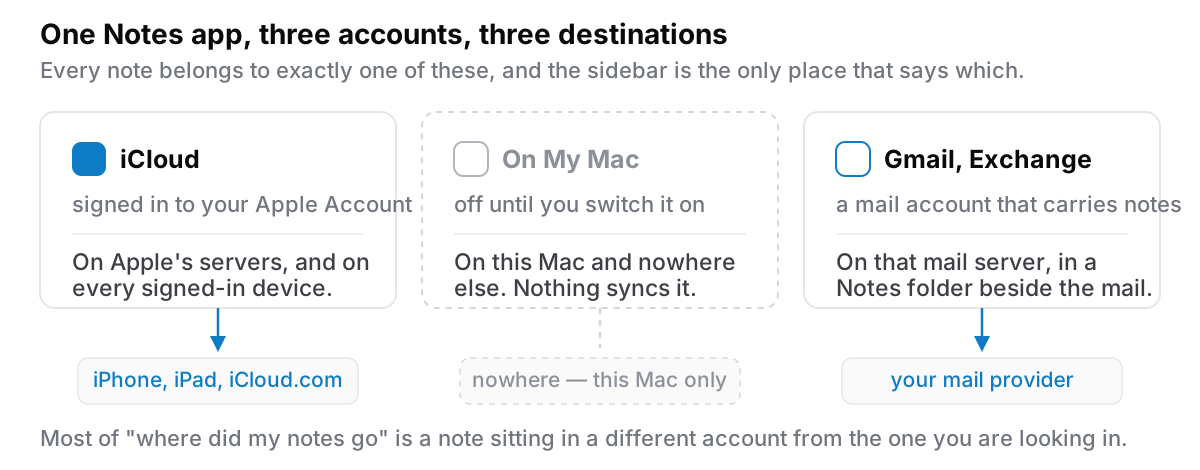
Once you see this, most mysteries dissolve. A note written on the Mac that never appears on the iPhone is usually a note that was created in On My Mac. Notes that "vanished" after a Gmail account was removed were Gmail's notes, not Apple's. If a note is genuinely missing rather than misplaced, the troubleshooting is a separate job and worth doing in order.
Two details are worth knowing before you start dragging notes between accounts. Apple warns that moving notes or folders between accounts can permanently lose formatting and attachments — sketches in particular may come out as flat images. And the non-iCloud accounts are thinner: collaboration is iCloud-only, and so, importantly, is the safety net described next.
Sync is not a backup
This gets said a lot and usually as a slogan, so here it is concretely.
A deletion syncs. Delete a note on your phone on the bus and it is gone from the Mac before you get home. That is sync working exactly as designed.
Damage syncs. If a note gets mangled — you paste over it, someone borrows your unlocked Mac — the mangled version is the one that propagates, and there is no version history to walk back through.
An account problem takes every copy at once. Every device holds a copy of the same account. Lose access to the account and you have not lost one copy, you have lost the mechanism by which all of them stay reachable.
The real safety net is Recently Deleted, and it is genuinely useful: a deleted iCloud note goes there, on every device, and Apple's documentation says you have up to 30 days to recover it before it is permanently removed. Apple's Notes guide has also mentioned a somewhat longer window — around forty days — before notes go from iCloud's servers, but thirty days is the number to plan against.
What it does not cover is the more common failure. Recently Deleted catches deletions. It does not catch a note you overwrote two months ago, it does not catch a folder you emptied out of Recently Deleted as well, and for non-iCloud accounts it does not exist at all — Apple states that in those accounts, deleted notes are removed permanently from every device using the account.
And there is one fact worth writing on the back of your hand: notes that sync to iCloud are not included in an iCloud device backup. Apple's own page on what iCloud backs up says a backup contains the information that does not already sync. So the iPhone backup you have quietly relied on for years does not contain your iCloud notes. It never did. The wider version of this argument is about layers, and the point of layers is that each one catches something the previous one cannot.
Where the data physically sits on a Mac
There is a real folder. On this Mac it is here:
~/Library/Group Containers/group.com.apple.notes/
Inside it is a SQLite database holding your notes, plus folders of media and attachments. The Library folder is hidden, so ⇧⌘G in Finder and pasting that path is the fastest route. Depending on your privacy settings, the Terminal or a backup tool may be refused access to it until you grant Full Disk Access — which is macOS protecting it, not a fault. Who else can read those notes, on your Mac and on Apple's servers, is a separate question, answered in are Apple Notes encrypted?
Two caveats before you get ideas. The note text in that database is not stored as readable prose, so opening it does not give you your writing back without tooling. And it is a cache of an account, not an archive — which is precisely why its existence is not the reassurance it looks like. I have written at more length about how to find this for any app and what the path is worth once you have it; the short version is that a path you can find is the floor, not the answer.
What happens when things change
This is the section people actually search for, so here it is, one situation at a time, with the uncertain parts flagged as uncertain.
Storage runs out. Every Apple Account comes with 5 GB free. When you are over your limit — whether by filling it or by cancelling a paid plan — Apple's documentation is consistent: iCloud stops syncing and updating your information, and backups stop completing. It resumes when you free up space or buy more. The dangerous part is not the stopping, it is the quietness of it. Two devices that have stopped syncing do not look any different from two devices that are syncing. Notes on each one carry on being editable, and they drift apart.
You turn iCloud Notes off on a device. Be careful here. Turning the account off in Notes makes that account's notes unavailable on that Mac while it is off, and turning it back on restores them. Removing the account is different: Apple says plainly that the account's notes are then deleted and no longer available on that Mac, with copies remaining in iCloud and on your other devices. Neither route converts iCloud notes into local On My Mac notes. The exact confirmation dialog has been worded differently across macOS versions, and the safe assumption is the pessimistic one: export before you toggle anything, and make sure another device or iCloud.com still shows the notes before you trust the switch.
You sign out of iCloud on the Mac. Worth knowing precisely, because it surprises people. When you sign out, macOS offers to keep local copies of some things — iCloud Drive documents, and data from Contacts, Calendar, Reminders and Messages. Notes is not on that list. Your notes remain in iCloud and on your other devices and come back when you sign in again, but you should not expect to find them sitting on the Mac afterwards.
You stop paying. Your storage drops to the free tier. If what you have exceeds it, syncing stops as above. Apple's cancellation page describes the stopping; it does not set out a deletion timetable, and I could not verify one I would be willing to state here. Community answers commonly mention a thirty-day grace period. Treat that as folklore rather than a promise, and get your data down below the limit before the plan lapses rather than after.
You leave Apple entirely. Nothing about an iCloud note is portable by default. It is not a file, it is a row in a database rendered by one app. Getting it out is a project of its own, and it is much cheaper to do while everything still works. If Windows is where you are heading, that has its own answer and it is mostly iCloud.com.
How to actually have a copy you own
One habit, and then the details.
The habit: twice a year, export your notes to a folder, put that folder somewhere that is not your Mac, and open one file to confirm it is readable. Twenty minutes. It is the only step in this article that changes your actual position.
The routes out, honestly rated. Export as PDF preserves how a note looks and is useless for anything else — you cannot edit it. Export as Markdown gives you real text you can open anywhere; in the macOS 26 and iOS 26 generation Notes gained Markdown import and export, and multi-select export has been reported, though there is still no single "export everything" command and the menu wording moves between releases, so check yours. Copy and paste is the fallback everybody dismisses, and it works fine for the twenty notes that genuinely matter. Attachments are the part to check rather than assume: Markdown export is reported to write images out alongside the text, Apple's documentation does not say so either way, and copy and paste will not. If a note's value is a photo of a serial number, verify that photo arrived before you delete anything.
If some of your notes are irreplaceable rather than merely useful — a will, a password hint, a research log — those deserve more than an export twice a year, and a copy that outlives your ability to log in is a different problem from a backup.
The honest version
For most people iCloud Notes is the right default, and this is not an argument to leave it. It is free, it is fast, it is on your phone, it syncs without being configured, and the cases where switching is genuinely justified are narrow. If you are happy with it, be happy with it.
What is worth changing is the belief that it is a backup. It is an account with cached copies, and the thing that makes it convenient — every copy agreeing, instantly — is the same thing that makes it a single point of failure. One export, twice a year, somewhere else, converts that from a risk into an inconvenience.
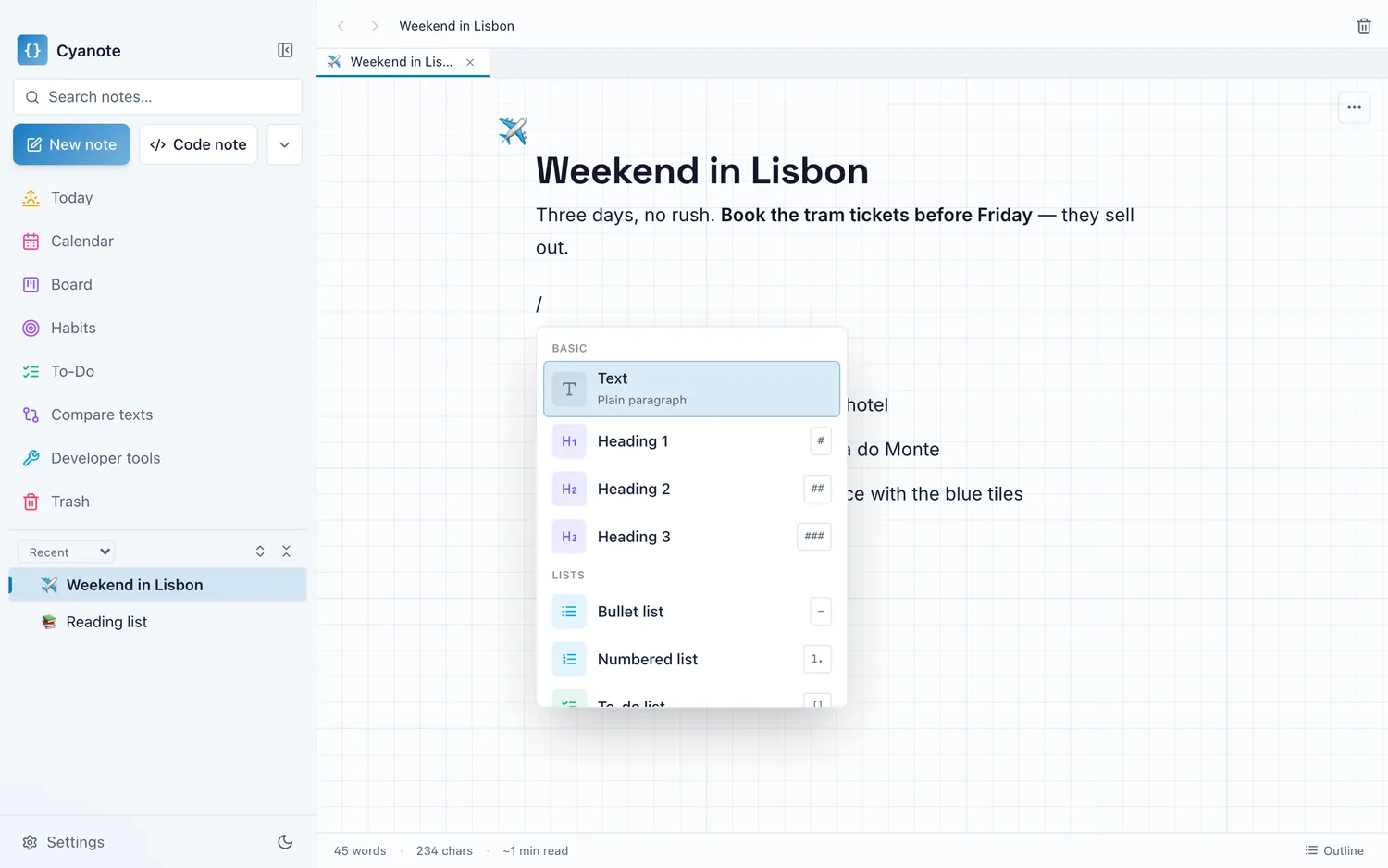
If you would rather the primary copy of some of your writing did not depend on an account at all, that is what local-first means and Cyanote is one answer: everything in one SQLite file on your own Mac, a readable JSON export of the lot whenever you want it, no account to lose, $7.99 once. It has no iPhone app, which for many people settles the question in the other direction — and that is a fair trade to make with your eyes open.